Invite students to your lessons
Class Spot doesn't send invitations on your behalf. Instead, you get a join link that you copy and forward to your student in whatever channel you already use — email, WhatsApp, Telegram, SMS. Students don't need an account to join: the link opens the lesson room directly in the browser.
There are three ways to invite a student, depending on what kind of lesson you're running. Pick the one that matches your case.
1. One-time lesson — a fresh link each time
Use this when you want to test the platform, run a single trial lesson, or meet a new student you haven't added to your roster yet.
- In your cabinet, click the green One-time lesson button in the top-right corner of the header.
- The whiteboard room opens immediately. Look at the top-right of the room.
- Click Invite. The link is copied to your clipboard automatically.
- Paste it into an email, messenger, or SMS and send it to your student.

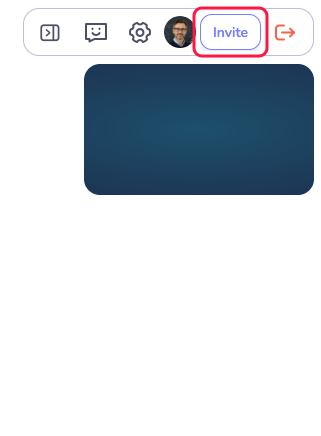
A fresh link is generated each time you click One-time lesson — last week's link won't work for this week's lesson. If you regularly teach the same student, use a Recurring Class (below) instead.
2. Recurring Class — one permanent link, used every time
Use this when you have an ongoing student and want a stable link they can bookmark, plus a board that keeps your notes between lessons.
Create the class
- In the sidebar, open Recurring Classes.
- Click + Add in the top-right.
- Give the class a name (for example, "Maria — English, Tuesdays").
- Open the Settings tab of the class.
Get the permanent link
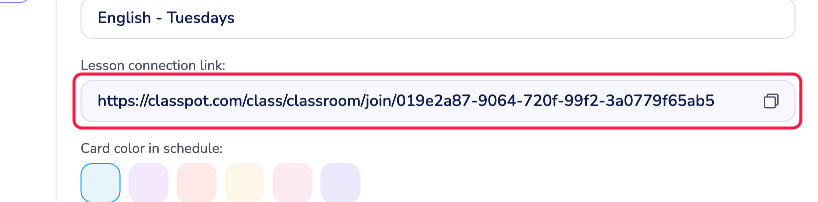
In Settings, find the Lesson connection link field. It looks like this:
https://classpot.com/class/classroom/join/<unique-id>
Click the copy icon next to it. This link is permanent — your student can save it as a bookmark, and the same URL will work for every lesson in this class. The whiteboard, materials, and student list all persist between lessons.
Add the student to the roster (optional but recommended)
Below the link, the Settings tab has a Students section. Click + Add student, pick an existing student card or create a new one, and they'll appear in this class's roster.
Adding the student to the roster lets you:
- See their name in your schedule and lessons history.
- Track homework and progress against this student.
- Send Telegram notifications about upcoming lessons (if they connect the Telegram bot).
Adding a student to the roster does not automatically send them the join link — you still copy the link and send it yourself.
3. Add a student to your global roster
If you want a student on file before scheduling any specific class, add them at the workspace level.
- In the sidebar, under the Class section, open Students.
- Click + Add in the top-right.
- Fill in the student's name (and optionally their Telegram handle).
- Save.
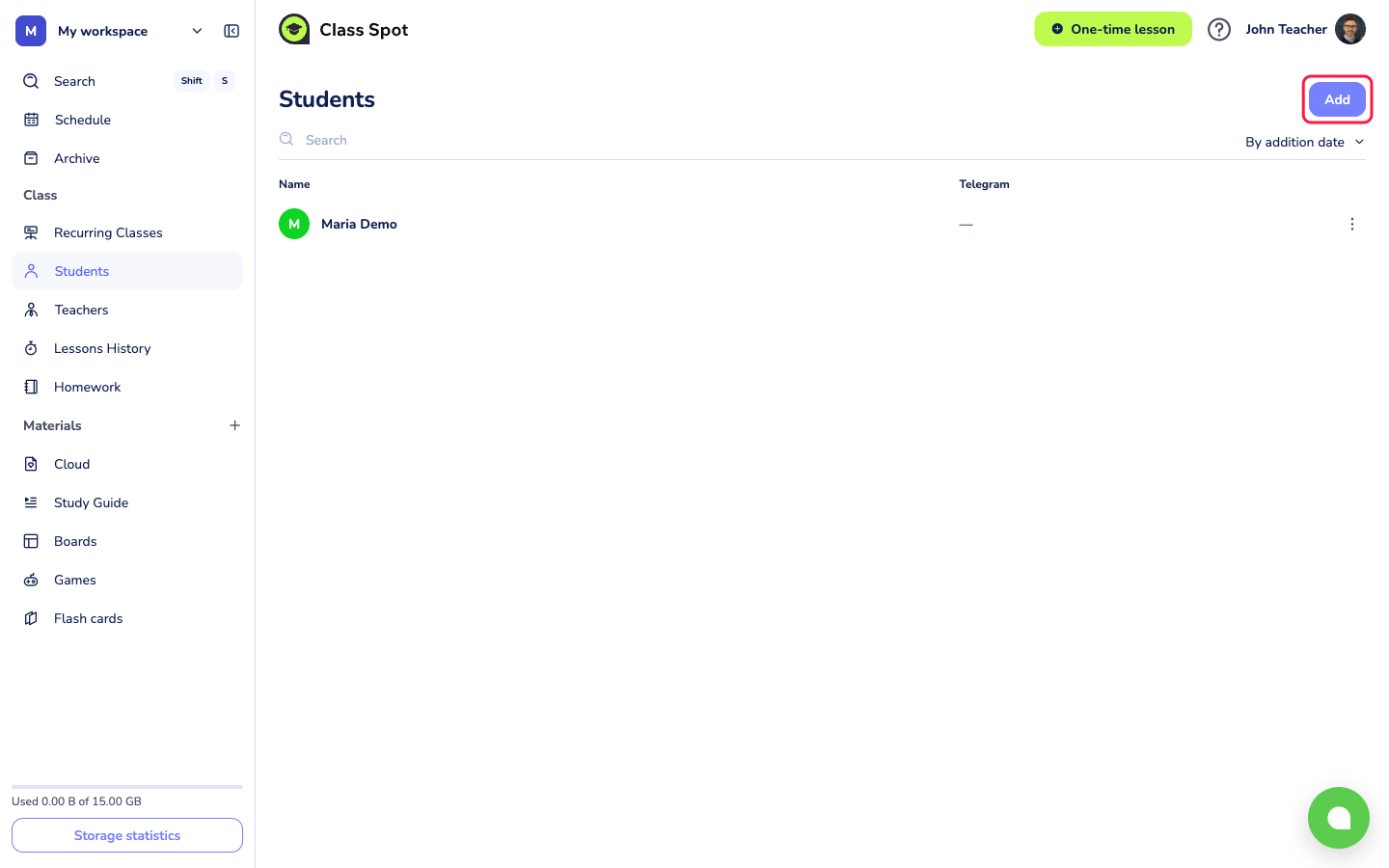
The student now has a card in Students and can be added to any Recurring Class. You can manage their notes, homework history, and contact details from their card. As with classes, this does not send them anything — you'll still need to share a join link separately.
How the student joins
There are two cases depending on whether they have a Class Spot account.
The student has a Class Spot account and is in your roster. They see the upcoming lesson on their own Class Spot schedule with a Go to lesson button. No link forwarding needed — they click that button and they're in. This is the smoothest experience and worth recommending if you teach the same student regularly.
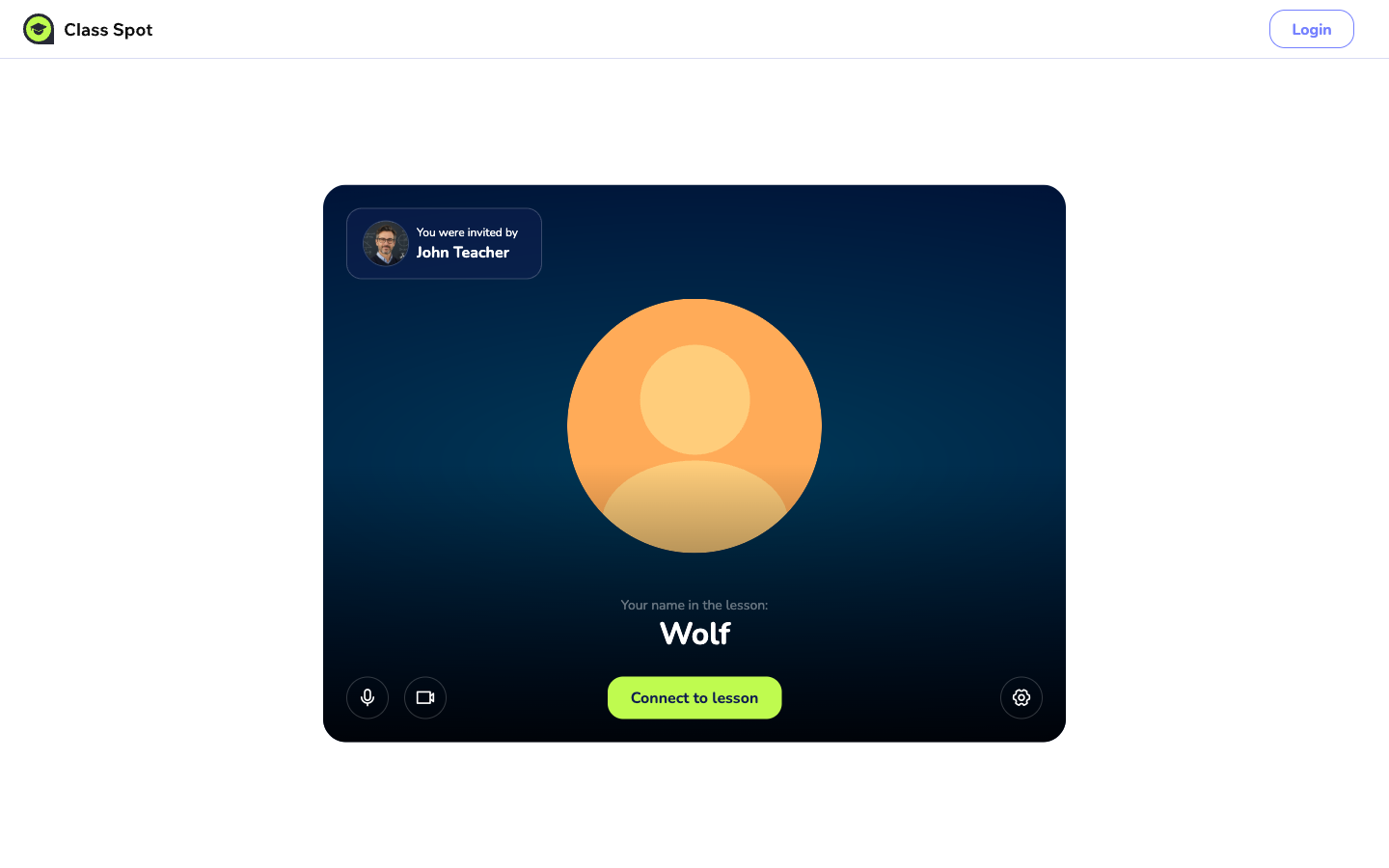
The student doesn't have an account (or isn't in your roster yet). Send them the join link by email, messenger, or SMS. They open it in the browser, no installation or signup required.
Either way they need:
- A modern browser — Chrome or Safari is recommended.
- A working camera and microphone.
When they open the lesson, the browser asks them to allow camera and microphone access. After that, they're in the room.
Best practices for sending an invitation
A short, clear message goes a long way. A template you can adapt:
Hi! Our lesson starts at 3:00 PM on Tuesday. Open this link in Chrome or Safari a couple of minutes early:
<paste link here>Allow camera and microphone when the browser asks. See you then!
For Recurring Class students, send the permanent link once and ask them to bookmark it. Add a reminder of the lesson time in each follow-up — the link alone won't tell them when the next lesson is.
Troubleshooting
The student opened the link but can't see me. The teacher must be in the room for the student to see anything. If you're already in, ask the student to refresh the page (Ctrl/Cmd + R). If the lesson room shows "waiting for the teacher", the student got the link but reached the room before you did — that's fine, you'll connect once you click One-time lesson or open the Recurring Class.
The student says "this link is broken". Two common causes: (a) the URL got truncated when copy-pasted into a chat app — re-send the full link; (b) the link is from an expired One-time lesson — generate a new one or switch to a Recurring Class.
The student opened the link in Firefox. Firefox often has trouble with the camera and screen sharing during lessons. Ask the student to copy the link into Chrome or Safari instead.
The "Invite" button isn't visible in the lesson room. Make sure the room is fully loaded (the whiteboard and toolbar should be visible). On smaller screens, the button may collapse into a menu — click the ⋮ icon in the top-right.
Can I invite by email directly from Class Spot? Not currently. Class Spot generates the link; you forward it yourself in your usual channel. We're working on this — if it's important to you, let us know via in-product chat.
If nothing above helps
Contact us:
- In-product chat — click the green chat bubble in the bottom-right of your cabinet, then Start Conversation.
- Email — info@classpot.com.