Schedule a recurring class
A Recurring Class is the way to teach the same student or group on an ongoing basis. You get one permanent join link, one whiteboard that persists between lessons, a saved roster, and a clean schedule. Set it up once and your weekly routine takes about ten seconds per lesson from then on.
This article walks you through creating the class, adding lessons to your schedule, and using it day-to-day.
Step 1 — Create the class
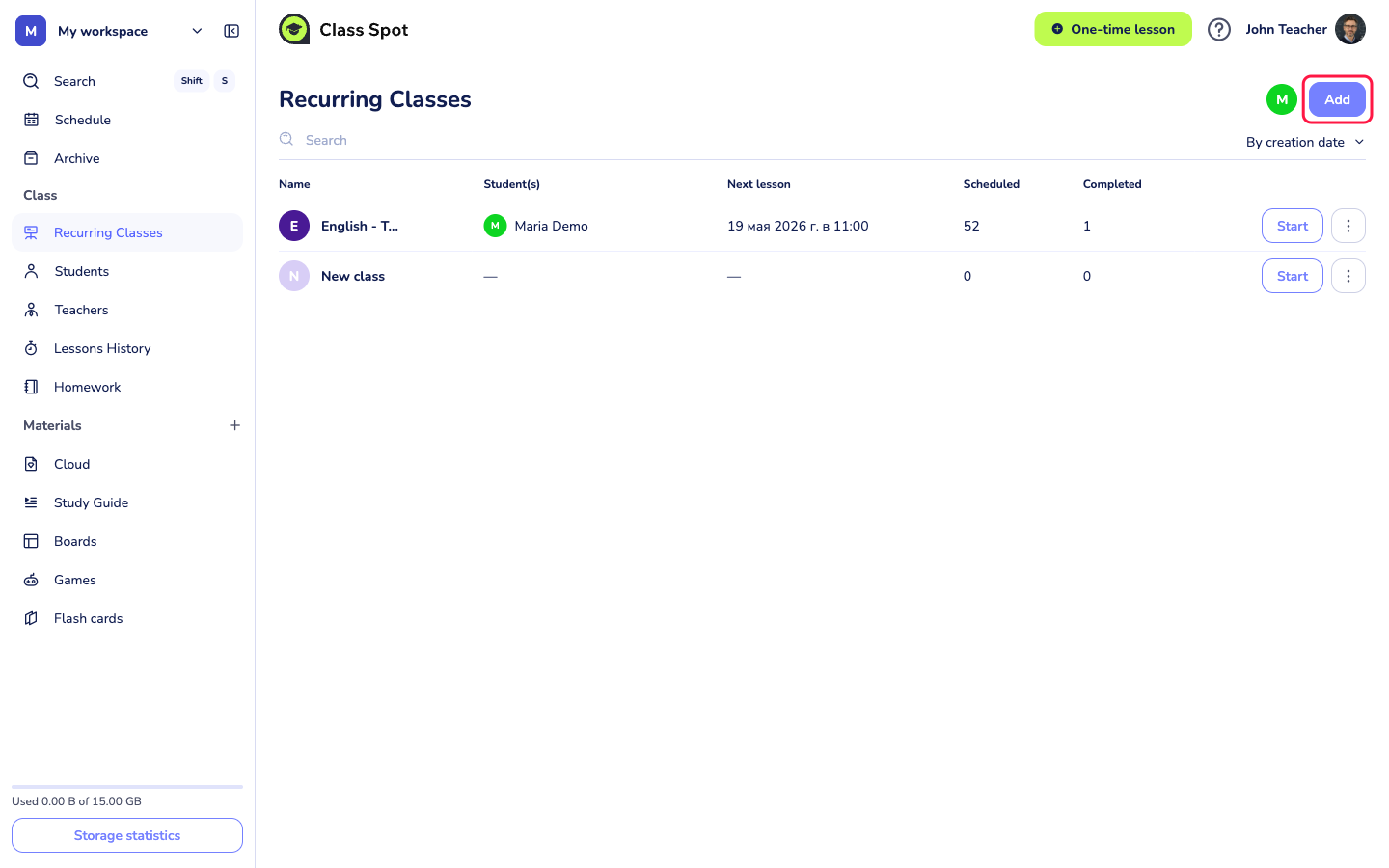
- In the sidebar, open Recurring Classes. The page lists every recurring class you've created, with columns for student, next lesson, scheduled count, and completed count.
- Click + Add in the top-right.
- Give the class a clear name. Useful patterns: student name plus subject ("Maria — IELTS"), or group plus level ("Grade 4 — Math").
- Save. The class opens with two tabs at the top: Schedule and Settings.
Step 2 — Configure Settings
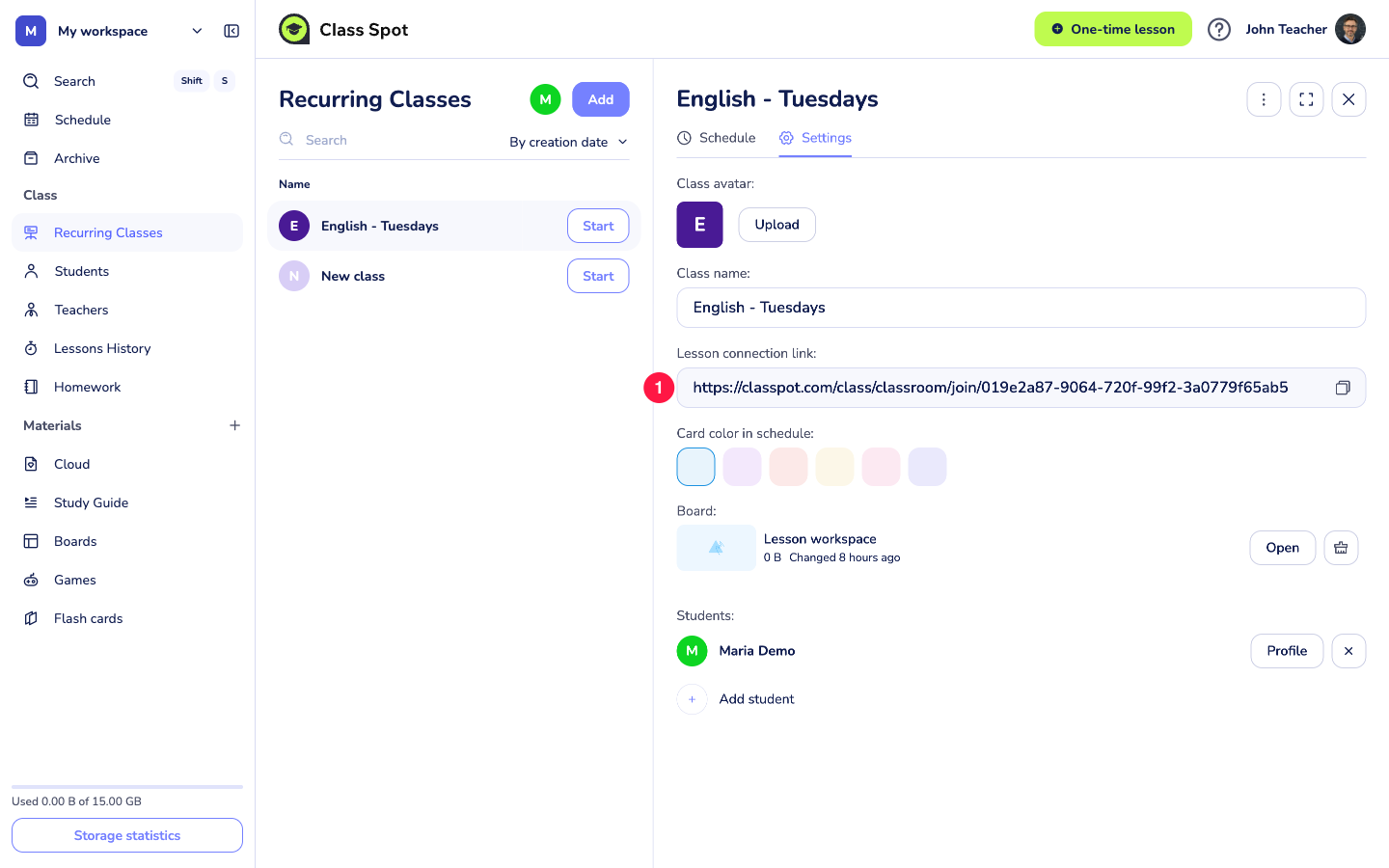
Open the Settings tab. You'll see six fields:
- Class avatar. Initial letter on a colored background by default. Click Upload to use a custom image — handy when you teach multiple students and want to recognize each class at a glance.
- Class name. Editable any time.
- Lesson connection link. The permanent join URL for this class, in the form
https://classpot.com/class/classroom/join/<unique-id>. Same link for every lesson — copy it once, send it to your student, ask them to bookmark it. See Invite students to your lessons for ways to share it. - Card color in schedule. Six pastel swatches. Pick a color for this class so it stands out on your calendar.
- Board. One persistent whiteboard for the class. Everything you write, every file you upload, every saved note stays here between lessons. We'll get to using it below.
- Students. The roster for this class. Click + Add student to attach existing student cards or create new ones.
You can revisit any of these at any time — settings are not locked after the first lesson.
Step 3 — Add lessons to your schedule
A class exists without any lessons yet. To make it appear in your weekly schedule:
Option A — From the Schedule view
- Open Schedule in the sidebar (the cabinet's home page).
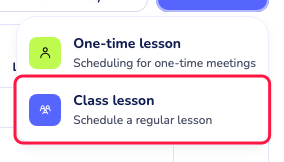
- Click + Create event in the top-right. A small menu appears with two choices: One-time lesson (for a single, ad-hoc meeting) and Class lesson (for any lesson tied to a Recurring Class).
- Pick Class lesson.
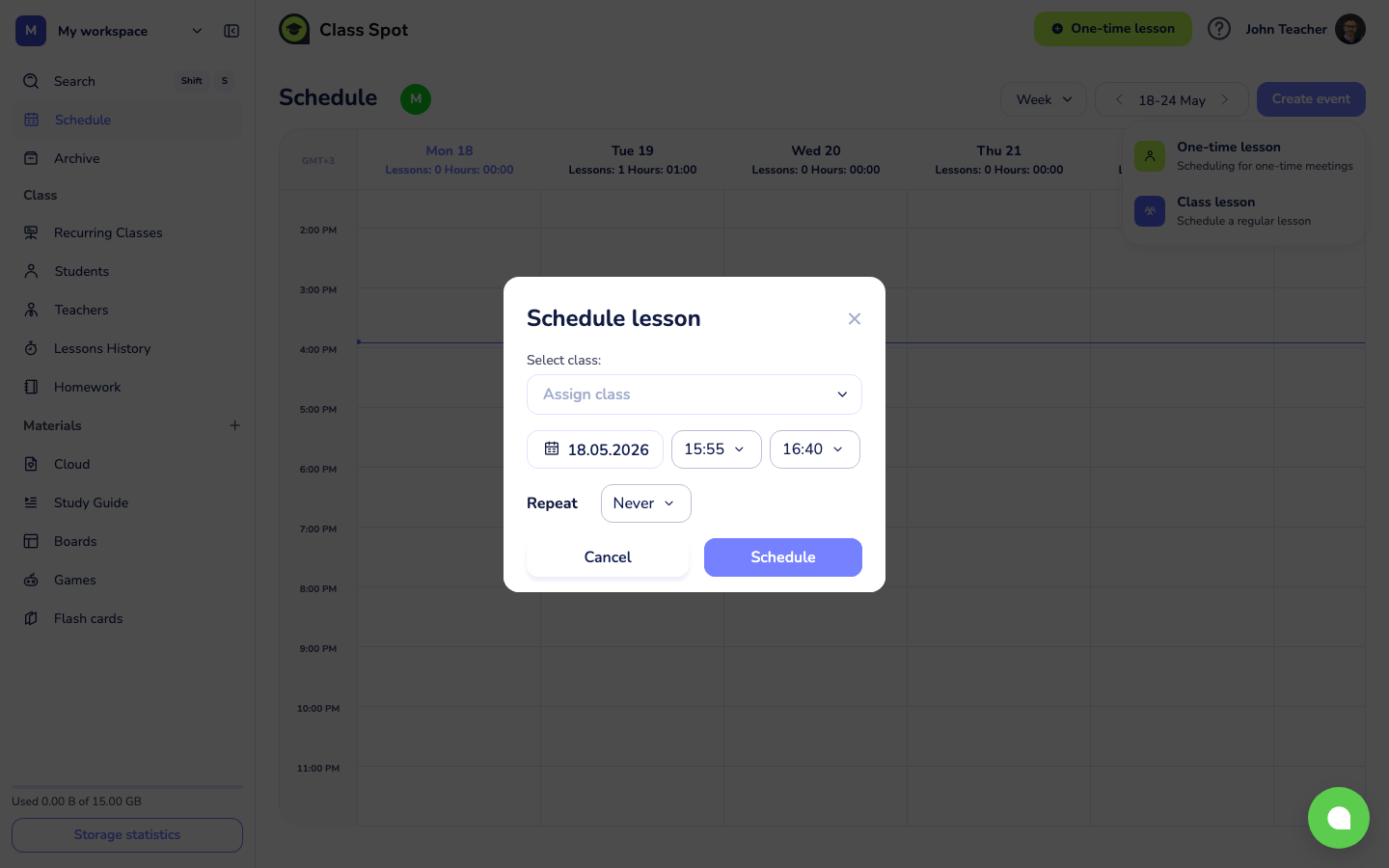
- In the scheduling dialog that opens, pick the date, time, and duration.
- Choose the Recurring Class you just created from the class picker.
- (Optional) Set the event to repeat — weekly, every two weeks, or a custom pattern. Most teachers pick "every week" and let it run.
- Save.
The event now appears on the schedule grid in the color you picked.
Option B — From the class itself
- Open the Schedule tab inside the Recurring Class.
- Click + Schedule lesson.
- Pick date, time, and (optional) repeat pattern.
- Save.
Both options put the same event on your main schedule. Pick whichever fits the moment.
Step 4 — Start a lesson
When the time comes (or any time, really), you can start a lesson three ways:
- From the Recurring Classes list, click the Start button on the class row.
- From the Schedule, click the event block.
- From inside the class, click Start at the top of its Schedule tab.
Each method opens the same room with the same persistent board. The student joins via the permanent link.

Day-to-day: what stays, what changes
| What | Behavior across lessons |
|---|---|
| Join link | Same every time. Send once, bookmark, reuse. |
| Whiteboard | One board, contents preserved between lessons. Yesterday's notes are still there tomorrow. |
| Uploaded files (PDF, PPT, images) | Stay on the board until you remove them. |
| Student list | Preserved. Add or remove from Settings. |
| Schedule events | Each event is one lesson on the calendar. Repeat patterns generate them automatically. |
| Lesson history | Each completed lesson is logged in Lessons History with date, duration, and any recordings. |
For a single, throwaway lesson — a quick chat with a prospect or a one-off interview — use a One-time lesson from the top-right header button instead. That generates a fresh, ephemeral link with a blank board.
Tips
- Bookmark the link on the student's side. Ask them to save the permanent link in their browser bookmarks. They'll never need to dig through chat history to find it again.
- Prepare the board between lessons. The board persists, so you can add next week's exercise on Sunday and it'll be waiting when the lesson starts. See Use the whiteboard during a lesson.
- Use Telegram notifications. If your student connects the Class Spot Telegram bot, they get reminders before each scheduled lesson — they choose how many minutes before the start the reminder arrives.
- Schedule a few weeks at once. Setting a weekly repeat for a term saves you from creating each event by hand. You can still edit or cancel individual events later.
Troubleshooting
The class doesn't show in my schedule. Creating a class doesn't put it on the calendar by itself. You also need to schedule at least one lesson event (Step 3). Check the Recurring Classes list to confirm the class exists, then add a lesson.
The "Start" button is missing. The student must be in your workspace and the class must exist. If you've just created the class, refresh the page. If a Recurring Class shows zero students, the start flow still works, but a roster is recommended for tracking.
My student can't find the join link. The permanent link is in the class's Settings tab. Re-send it from there. The link doesn't change, so any previously sent message with the same URL should still work.
The board is empty when I expected it to be full. Check that you're inside the Recurring Class, not a One-time lesson. One-time lessons always start blank. The board lives at Recurring Classes → [your class] → Settings → Board.
Can I move a recurring class to a different time? Yes. Edit an individual event from the schedule to move one lesson. To change the pattern for all future lessons, delete the upcoming events and re-schedule with the new time.
If nothing above helps
Contact us:
- In-product chat — click the green chat bubble in the bottom-right of your cabinet, then Start Conversation.
- Email — info@classpot.com.