Edit or delete a repeating lesson
When a lesson repeats — daily, weekly, or on a custom pattern — every change you make can apply to one lesson or to the whole series. Class Spot always asks which one you mean, so you can move a single Tuesday lesson without touching the rest of the term.
Move or edit one lesson
- Open Schedule in the sidebar.
- Drag the lesson to a new time — or click it and press the pencil icon to edit the details.
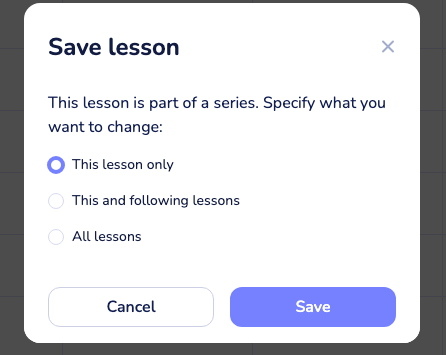
- A dialog appears: "This lesson is part of a series. Specify what you want to change:"
- Pick one of the three options and click Save:
- This lesson only — just this occurrence moves; the rest of the series stays put.
- This and following lessons — this lesson and everything after it changes; past lessons keep their old time.
- All lessons — the entire series, including past occurrences.
You can also drag with the mouse to fine-tune the time — the calendar snaps to 5-minute steps.
Delete lessons from a series
- Click the lesson in the Schedule and open the ⋯ menu in the popup.
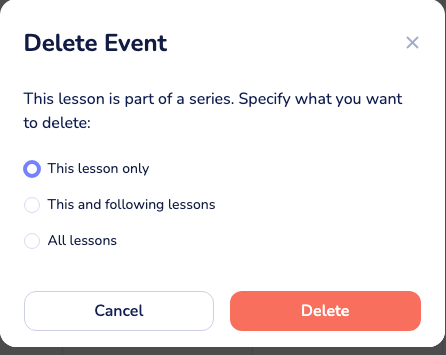
- Click Delete Event.
- The same three choices appear: This lesson only, This and following lessons, or All lessons.
- Confirm with Delete.
Deleting schedule events doesn't remove lessons you have already taught — completed lessons stay in Lessons History.
Tips
- Moving a lesson to a different day? The "All lessons" option isn't offered in that case — a day change applies to this lesson only, or to this and the following ones.
- Changing the weekly time for the rest of the term: drag the next upcoming lesson to the new time and choose This and following lessons. Done in one move.
- Two series that should be one? Open a lesson's popup and use the Link icon to merge series — useful when you accidentally scheduled the same class as separate events.
What to do if it doesn't work
I moved a lesson and the whole series moved. You picked All lessons (or This and following lessons) in the dialog. Drag the series back the same way — choose the same scope — then move just the one lesson with This lesson only.
I deleted a lesson but next week's is still there. You chose This lesson only. Delete the next one with This and following lessons to clear the rest of the series.
"Go to lesson" is greyed out. The event is in the past or was cancelled — completed and cancelled events can't be started.
If nothing above helps
Contact us:
- In-product chat — click the green chat bubble in the bottom-right of your cabinet, then Start Conversation.
- Email — info@classpot.com.