Let students into your lesson
Students don't drop into your lesson unannounced. When someone opens your lesson link, they wait in a lobby until you let them in — so you decide who joins and when.
What the student sees
After clicking your link, the student sees "Waiting for teacher" if you haven't opened the room yet, and "Connection request — Waiting for teacher's permission to connect to the lesson" once you're in. They stay on that screen until you act.
Admit a student
When a student knocks, a notification appears in your lesson (with a sound):
- The card says "Waiting for connection" with the student's name.
- Click Connect to let them in — or Reject to turn them away.
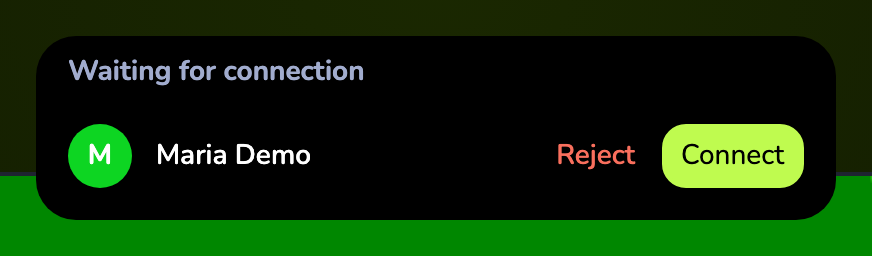
If several students are waiting, the notification collapses into one card — click Show to review them individually, or Connect to admit everyone at once.
Manage the queue from the Participants list
Click the Participants list icon in the bottom-right of the lesson. The panel groups people into "Waiting to connect" and "In lesson", and gives you bulk actions:
- Connect everyone — admit all waiting students in one click.
- Disconnect everyone — remove all connected students.
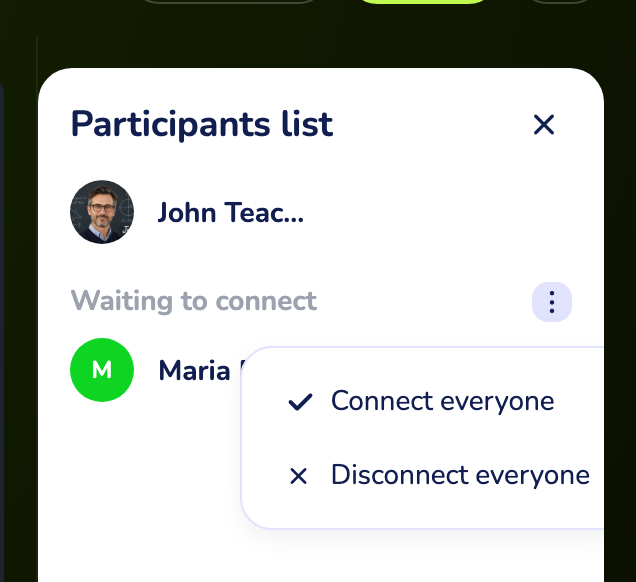
A badge on the Participants icon shows how many students are waiting, so you won't miss a request even with the panel closed.
Tips
- Scheduled lessons open shortly before the start time. A student who clicks the link too early sees a message that access opens a few minutes before the lesson.
- Keep the sound on. The join request plays an audio cue — helpful when you're looking at the board, not the notification corner.
- Removed someone by mistake? They can knock again with the same link; just click Connect when the request reappears.
What to do if it doesn't work
A student says they're stuck on the waiting screen. Open the Participants list and check "Waiting to connect" — the request may have arrived silently. Click Connect next to their name.
I don't see any request but the student clicked the link. Make sure they used the current lesson's link and that you're inside the lesson room. If the lesson hasn't been started yet, the student is waiting for you to open it.
I rejected a student by accident. Ask them to open the link again — a new request will appear.
If nothing above helps
Contact us:
- In-product chat — click the green chat bubble in the bottom-right of your cabinet, then Start Conversation.
- Email — info@classpot.com.