Add interactive exercises to a Study Guide
A Study Guide becomes more than a reading handout the moment you drop in an interactive exercise. Class Spot ships seven widget types out of the box. Each is auto-graded (with one optional exception), works in a live lesson and as homework, and renders the same way in a public share link.
This article walks through every type, when to pick which, and the small rules they share.
How to add an exercise
Inside the editor, press / to open the slash menu and scroll to the Interactive group. Click a widget to insert it; the empty shell drops into the document where your cursor is. Fill in the prompt, the answer options, and any extra fields the widget needs — autosave handles the rest.
On a fresh empty Study Guide, the Quick start panel at the bottom of the page also has one-click buttons for most widget types. Either entry point is fine.
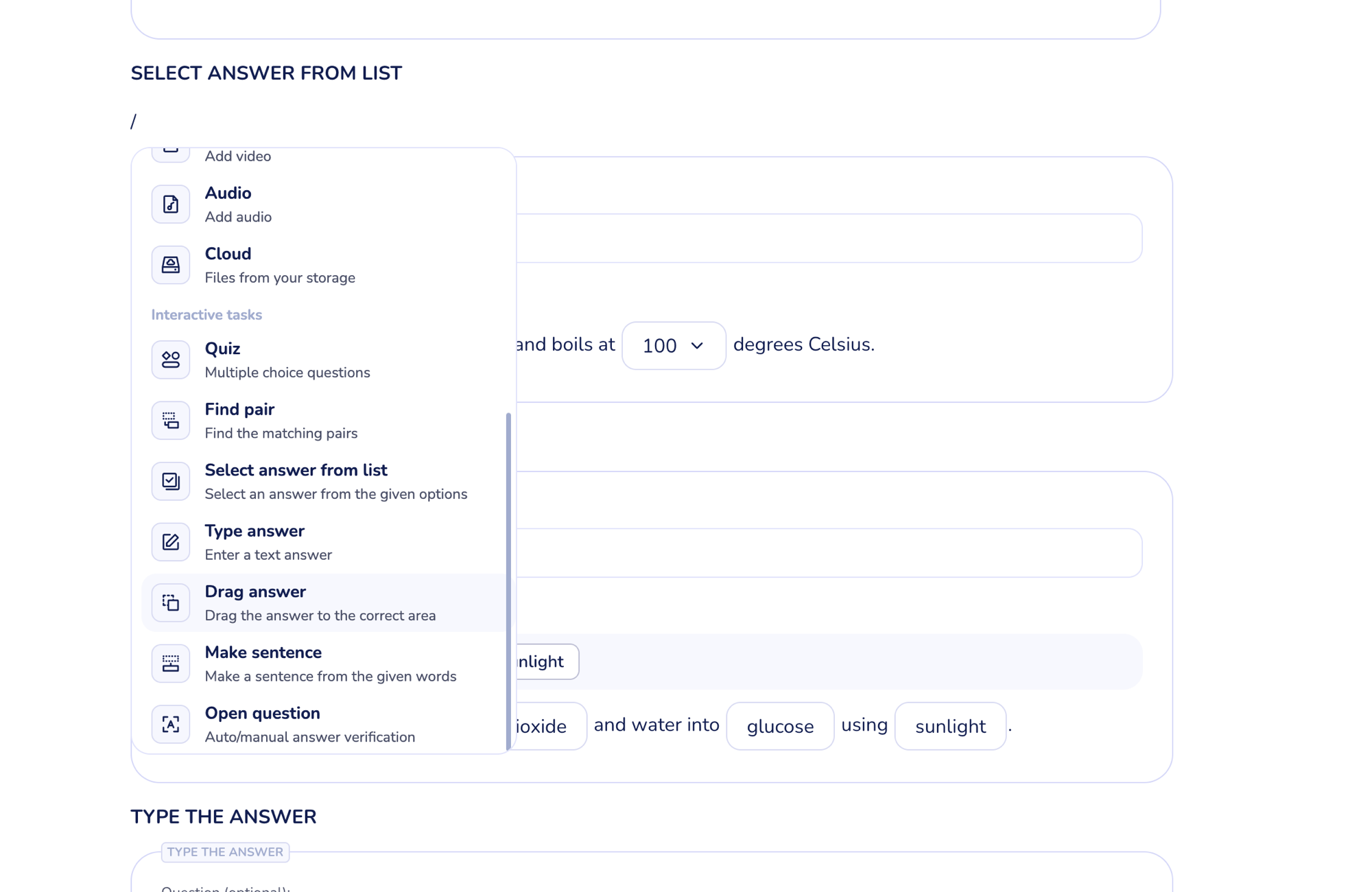
All seven widget types are available on every plan, including Free.
The seven widget types
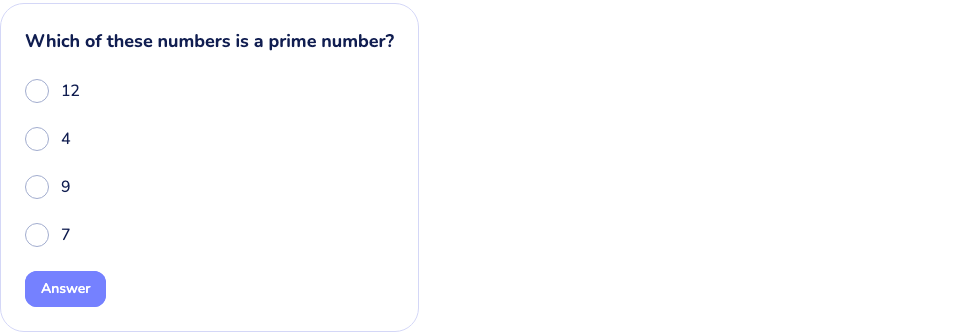
Quiz
A multiple-choice question. Add one or more correct answers and zero or more wrong answers; the student picks all the right ones to get the question correct.
Use it for: factual recall, vocabulary, comprehension checks.
Variants are shuffled every time the widget renders — in the editor preview, in a live lesson, and in the exported PDF — so the order you set them is just for your own reference.
Find pair
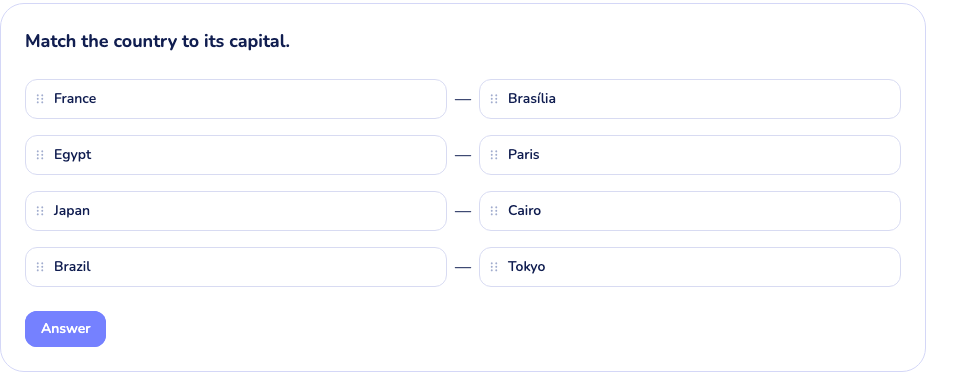
Two columns of items; the student matches each left item to its correct right partner by dragging. Pick text-text or image-text mode from the format dropdown above the widget.
Use it for: vocabulary translations, term/definition matching, image labels.
The widget needs at least two filled pairs to show up for the student. Below that, the student sees nothing. The editor warns you about this inline.
Make a sentence
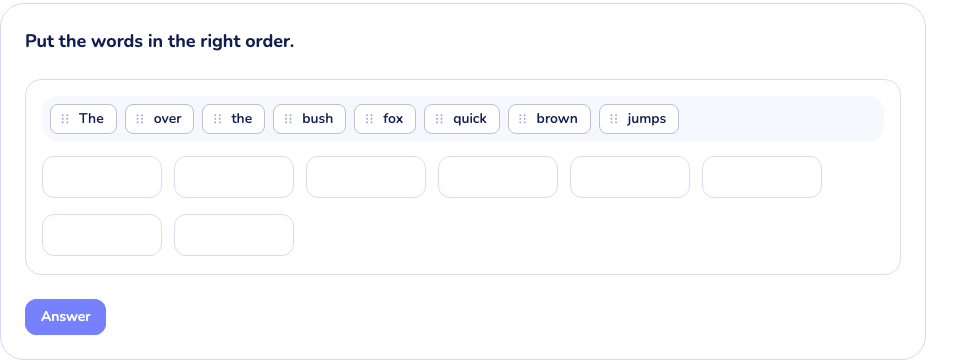
A scrambled set of words; the student arranges them in the right order. You can add multiple sentences to one widget block.
Use it for: grammar drills, syntax practice, word-order languages.
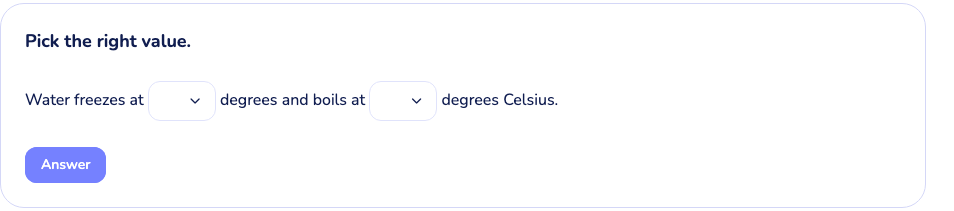
Select answer from list
A passage of text with dropdown blanks. The student picks the correct answer from a per-blank dropdown of variants.
Use it for: fill-in-the-blank where you want to limit student guesses, multiple-choice cloze.
Write answer
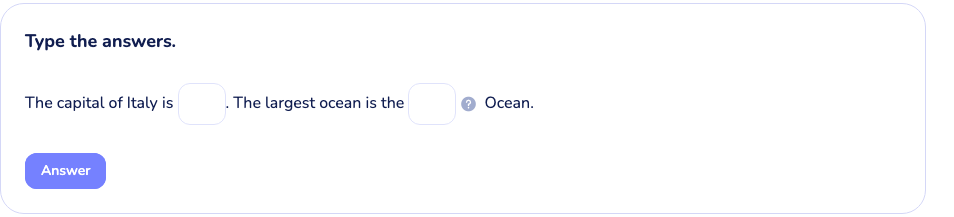
Same passage shape as Select answer, but with free-text input blanks. You set one or more accepted strings per blank; the student types into the field and the answer is matched against your list (capitalization and trailing spaces are ignored).
Use it for: spelling, recall without prompts, short-answer drills.
Drag answer
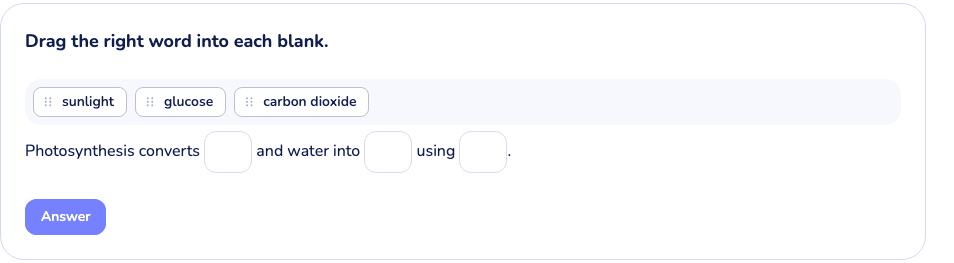
Passage with blanks plus a pool of word chips. The student drags the right chip into each blank.
Use it for: fill-in-the-blank with a visible word bank, lower difficulty than free input.
Open question
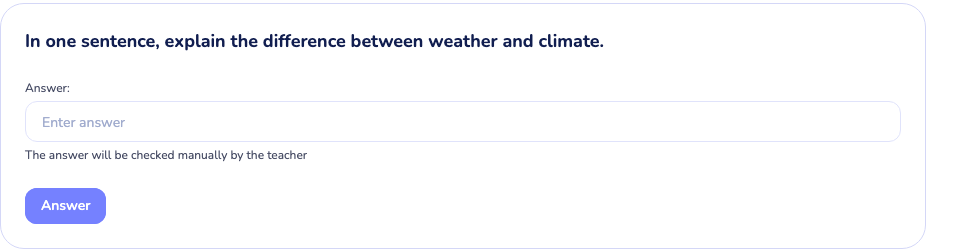
An open-ended answer field. The student types a sentence or short essay; the widget can grade automatically against a list of accepted answers, or you can mark it Manual so it queues for your review after the student submits.
Use it for: explanations, opinion questions, anything that doesn't have one right answer.
Toggle Manual review in the widget settings. Manual answers appear in Homework → Results with a "Needs review" badge until you grade them.
What every widget shares
Every widget has an optional "Question (optional)" text field above the body. Use it to add context or a heading right above the widget; leave it blank if the surrounding text already sets the stage.
How widgets behave for the student
The student sees the same widget rendering you do in Preview mode. They tap an option, drag a chip, or type into a field; the answer is auto-graded the moment they hit Answer, and the widget shows ✓ or ✗ inline. The teacher view streams the student's answers in real time, so during a live lesson you can see what each student picked.
A Study Guide tracks how many widgets are completed out of total — a "0/N" indicator at the top of the page, where N is the number of widgets that actually show up for the student. Empty widgets (no correct answer, no passage text) don't count toward N.
Tips
- Mix types within one Study Guide. Three quizzes in a row feels like a test. A quiz, a find pair, and an open question feels like a class.
- Use images in find pair for younger students. Picture-text matching is more forgiving on reading speed and works for non-native learners.
- Set Manual review on essay-style open questions. Auto-grading on prose is unreliable; flag it as manual and add a personal note in Homework → Results.
- Don't ship a widget with only one variant. Find pair needs ≥ 2 pairs, quiz needs at least one correct option, blanks need passage text. Below those thresholds the widget silently hides from the student view.
What to do if it doesn't work
A widget I added doesn't show up when I preview it. Check the minimum fill rule — find pair needs at least two complete pairs, blanks need the passage to have text, quiz needs at least one answer option. Edit the widget back to a complete state and the preview will render it.
The student didn't see the widget at all in the lesson. Same rule applies. If you opened a Study Guide with a half-built widget, the student doesn't see that widget. Finish filling it in (autosave is instant), and reopen the Study Guide on the student's side.
Still stuck? Contact us via the in-product chat (the green bubble in the bottom-right of your cabinet) or info@classpot.com.
Related articles
- Create your first Study Guide
- Use a Study Guide during a lesson
- Share a Study Guide or assign it as homework
- Compare Class Spot plans