Share a Study Guide or assign it as homework
A Study Guide is more useful when it lives outside the lesson where you built it. You can hand it to a student as homework with automatic grading, or hand it to anyone as a public link that opens without a login.
Both options live in the editor header. The buttons are the third and second icons from the left.
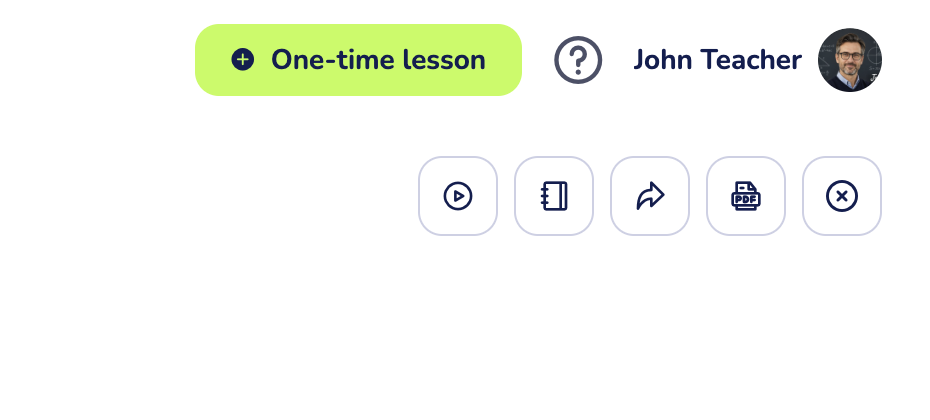
Share a Study Guide with a public link
Click Share (the arrow icon) in the editor header. Class Spot generates a public link and copies it to your clipboard. A small "Link copied" message pops up in the top-left to confirm.
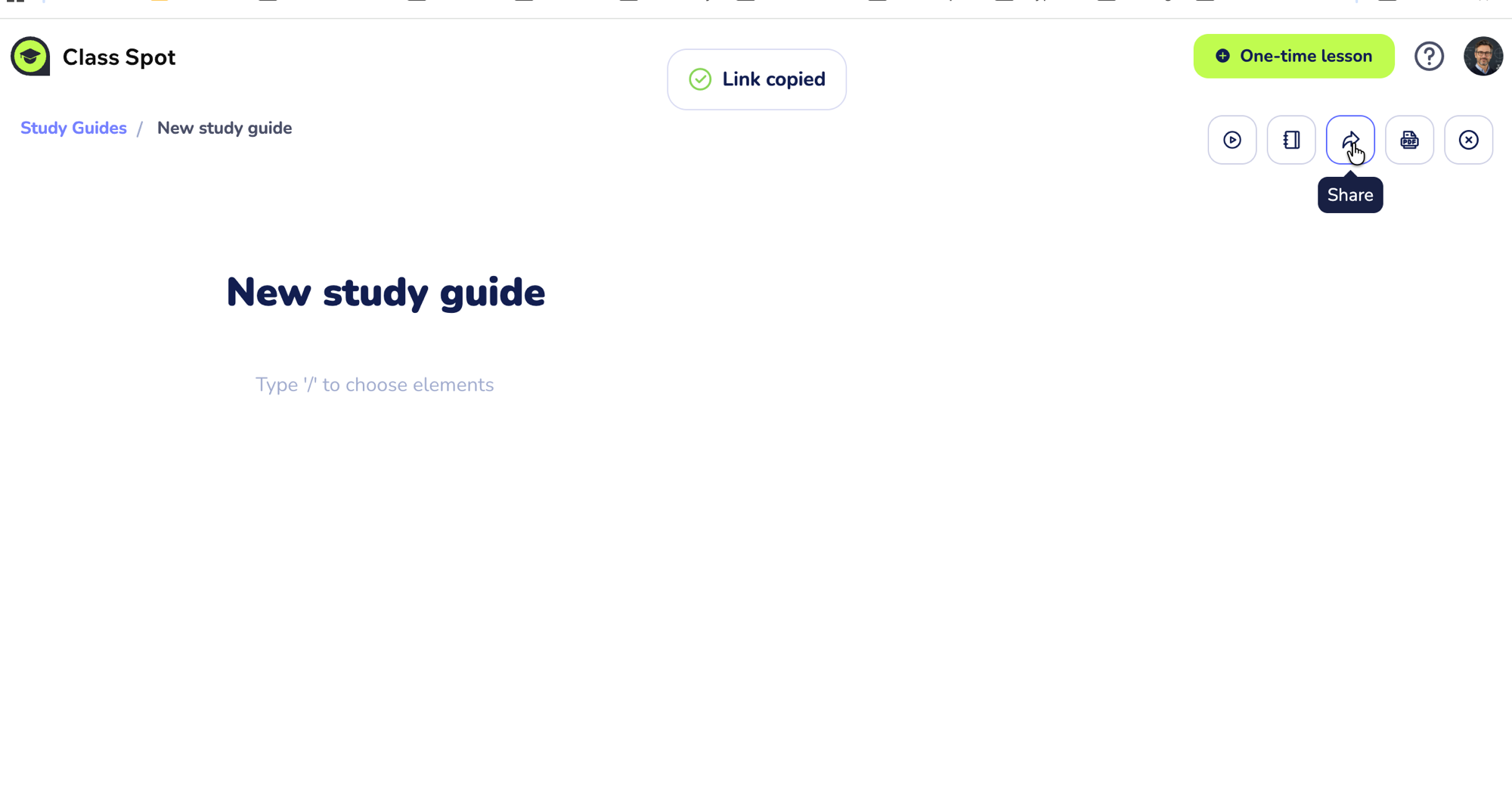
Paste the link into chat, an email, or a class group. The link looks like https://classpot.com/class/shared-material/<uuid> — anyone who opens it sees the Study Guide without signing in. Interactive widgets work on the public view, but answers stay on the visitor's device — they don't come back to you.
The Share button is a Solo Max and Business feature. On Free and Solo Pro plans, clicking Share opens an upgrade prompt.
The shared link cannot be revoked from the cabinet today. Once you've shared a link, anyone who has it can open the Study Guide as long as you keep the underlying material. To take down a shared link, contact us via the in-product chat (the green bubble in the bottom-right of your cabinet) or info@classpot.com — we can remove the share on the server side. We're working on a self-serve revoke control.
Assign a Study Guide as homework
Click Assign homework (the book icon) in the editor header. A modal opens titled Assign homework.
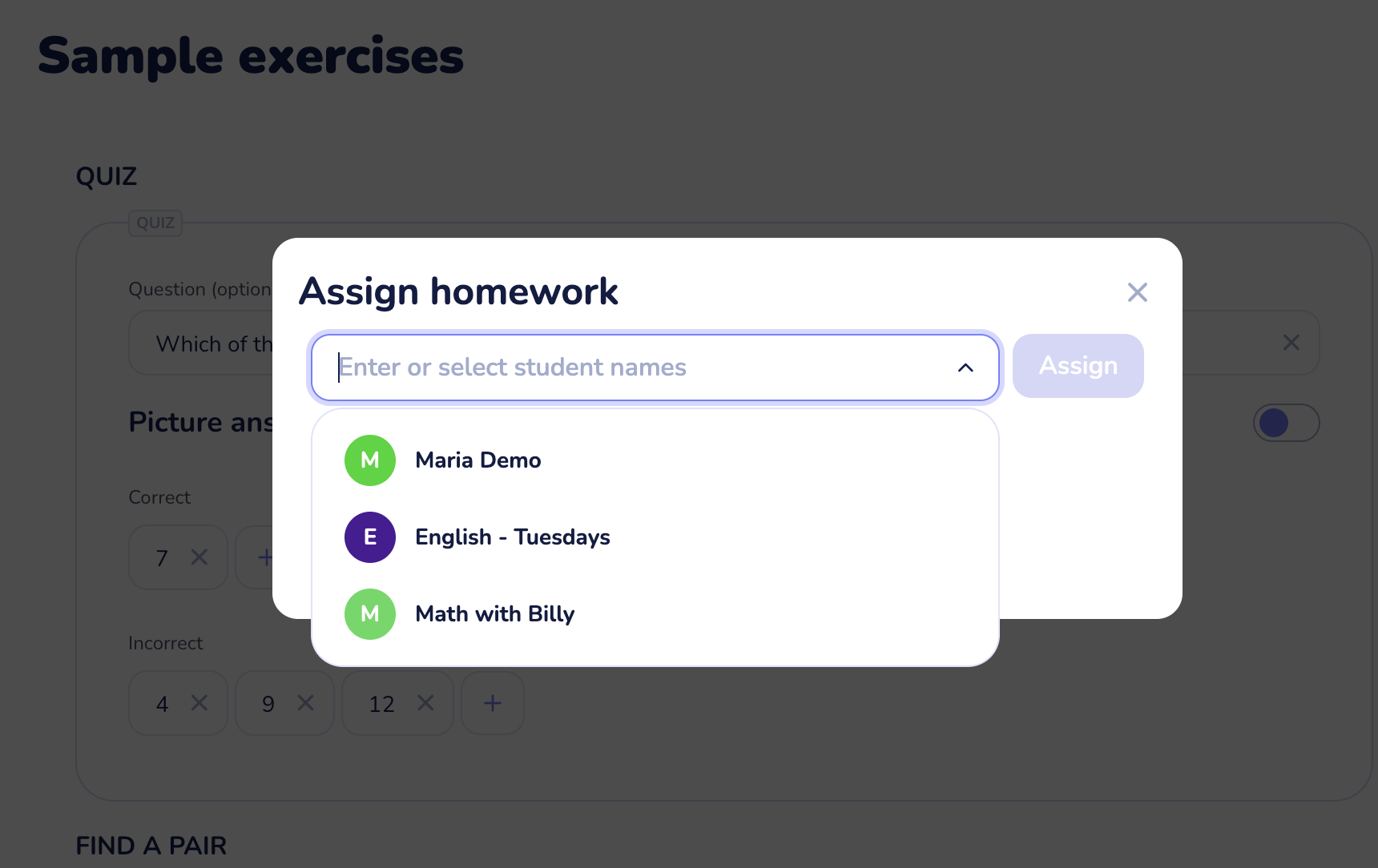
- Click the input and pick a recipient. The dropdown lists both your classes (whole groups) and individual students.
- Click Assign. The student gets the assignment immediately in their Homework tab and an in-app notification.
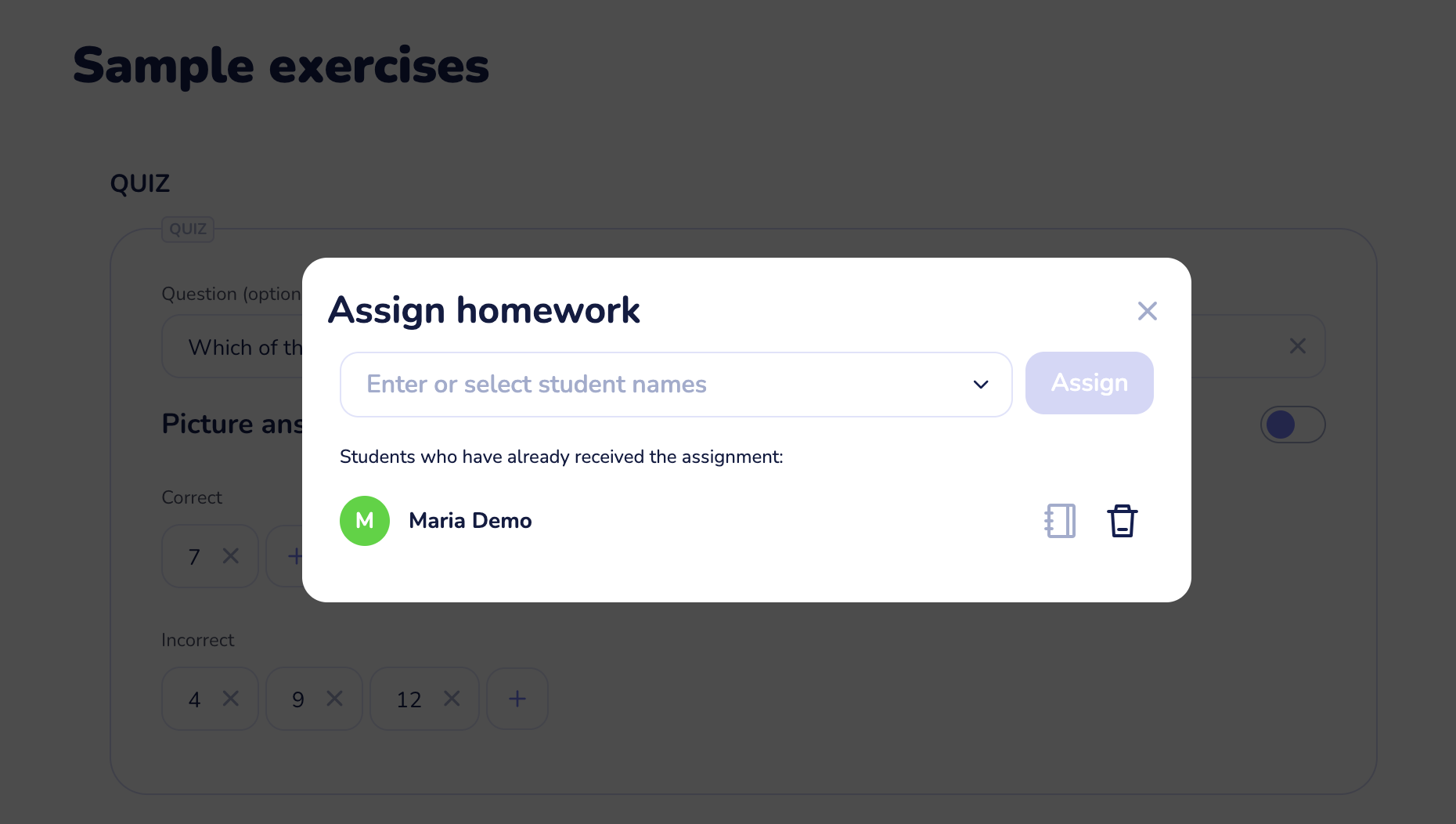
- Repeat for more recipients without closing the modal — every chosen recipient lands in the Students who have already received the assignment panel below the input. From there you can open a recipient's homework results (the book icon next to their name) or revoke the assignment (the trash icon).
Auto-gradeable widgets — quiz, find pair, sentence, blanks, and auto-mode open question — score the student's answers the moment they submit. Manual-mode open questions land in Homework → Results with a "Needs review" badge until you grade them.
Assigning homework is a Solo Max and Business feature. On Free and Solo Pro plans, clicking Assign opens an upgrade prompt.
Plan limits at a glance
| Capability | Free | Solo Pro | Solo Max | Business |
|---|---|---|---|---|
| Open a Study Guide in a lesson | ✓ | ✓ | ✓ | ✓ |
| Export to PDF | ✓ | ✓ | ✓ | ✓ |
| Assign as homework | — | — | ✓ | ✓ |
| Public share link | — | — | ✓ | ✓ |
For the full plan comparison, see Compare Class Spot plans.
Tips
- Use homework for individual progress, share for one-off groups. Homework gives you a grading view per student. Share is faster but anonymous — fine for a public lesson recap, less useful for tracking progress.
- Send the same Study Guide to a whole class at once. Pick a class from the Assign dropdown instead of adding students one by one. The class gets the homework as a group; each student's submission is tracked individually.
- Preview before you send. Click Preview (the play icon) in the editor header to see exactly what the recipient will see — including widget shuffling. Catches typos and broken widgets before the student does.
What to do if it doesn't work
Clicking Share or Assign opens an upgrade prompt. You're on Free or Solo Pro. Both features are Solo Max and above. See Compare Class Spot plans for the full list.
The student says they didn't receive the homework. Open the Assign homework modal again and check the "already received" panel — if the student isn't listed, the assignment didn't go through; click their name again. If they are listed but say they don't see the homework, ask them to refresh the Homework tab — the notification appears within a few seconds but some browsers cache the list.
I shared a link and want to take it down. The cabinet doesn't have a "Stop sharing" button yet. Contact us via the in-product chat (the green bubble in the bottom-right of your cabinet) or info@classpot.com and we'll remove the share on the server side.
Still stuck? Contact us via the in-product chat (the green bubble in the bottom-right of your cabinet) or info@classpot.com.
Related articles
- Create your first Study Guide
- Add interactive exercises to a Study Guide
- Use a Study Guide during a lesson
- Compare Class Spot plans