Create your first Study Guide
A Study Guide is a lesson notebook you build once and use everywhere — in a live lesson, as homework, or as a public link your students can open without an account. It mixes formatted text, images, video, audio, tables, and seven kinds of interactive exercises into a single page that you control.
This article covers the basics: where to find Study Guides, how to create one, and what each plan allows. For exercise widgets, see Add interactive exercises to a Study Guide. To open a Study Guide in a live lesson, see Use a Study Guide during a lesson.
Where to find Study Guides
Open Materials → Study Guide in the sidebar. The page lists every Study Guide in your workspace, with a search box, sort, + Create button, and a view toggle in the top-right.
The two views show the same data:
- Grid view (default) — large tiles with cover image, title, file size, and "Modified Nh ago". Best for browsing.
- List view — a table with Name | Last modified | Created | Type | Size. Best for finding a specific guide by date or sorting by size.
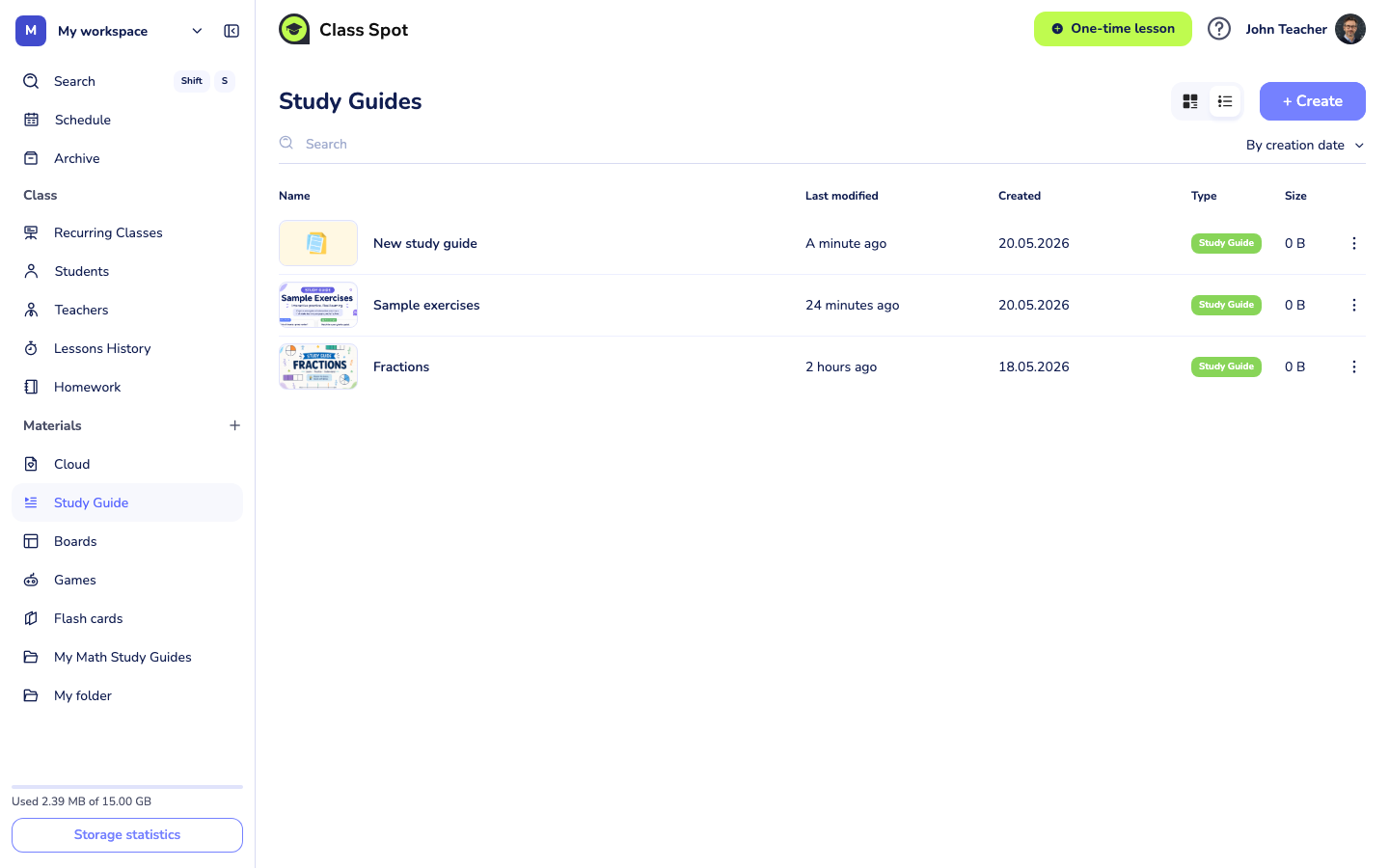
The default sort is By creation date. Change it from the dropdown above the table.
Create a new Study Guide
- Click + Create. Class Spot creates an empty Study Guide titled "New Study Guide" and opens it for editing.
- Click the title and type your own. The title saves automatically when you click away.
- Hover above the title and click Add cover to upload a cover image. Maximum size 5 MB; supported formats are JPG, JPEG, PNG, and WEBP. The cover shows on the list page and on the public share link.
- Click into the body and start typing. Press / to open the slash menu, or use the Quick start buttons at the bottom of an empty guide.
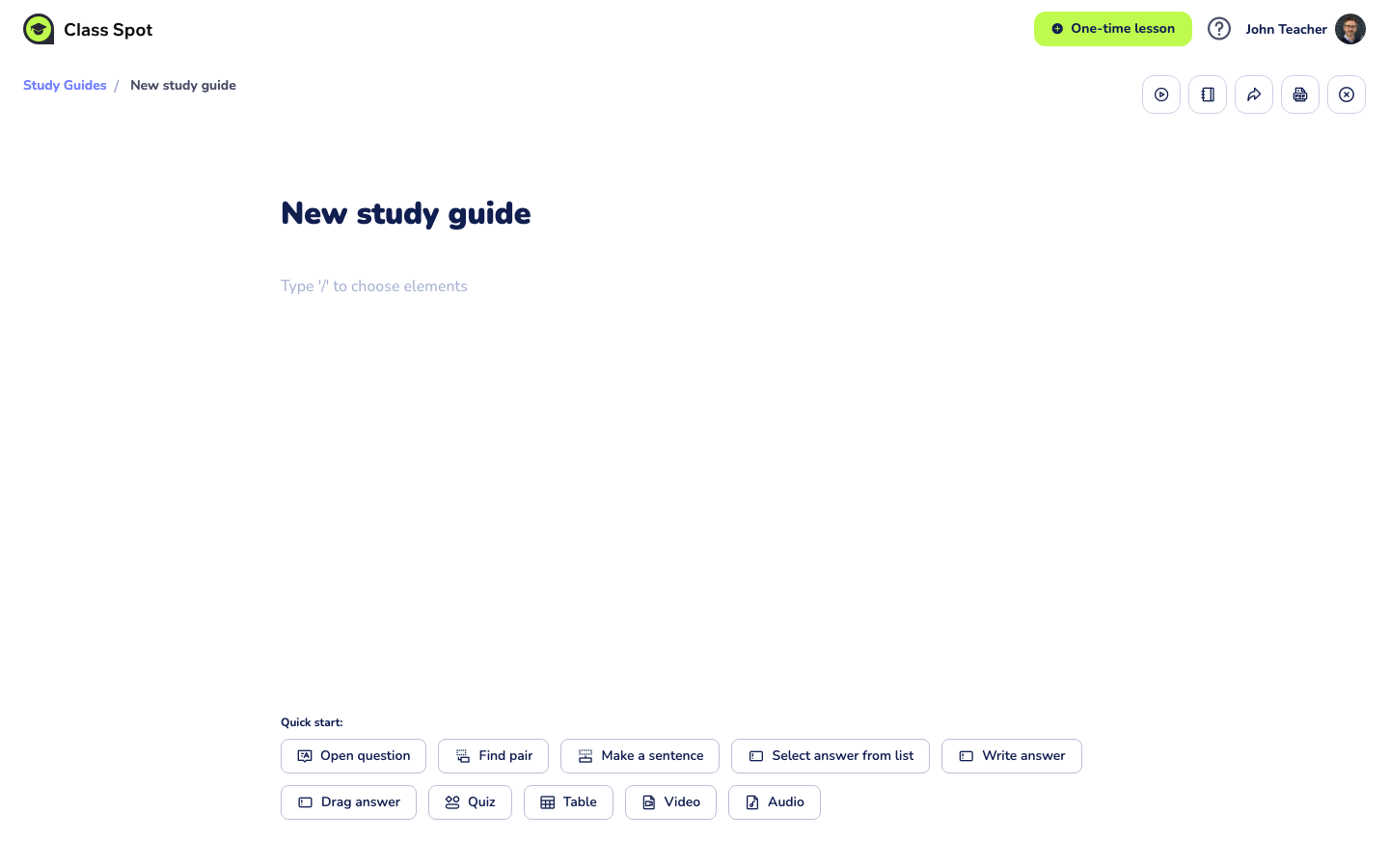
The whole document saves automatically as you type — there is no Save button. If you close the tab or lose your connection mid-edit, your latest typing is safe up to about one second before the disconnect.
What you can add to a Study Guide
Press / anywhere in the body to open the slash menu. The menu has three groups:
- Basic — paragraph, heading, bullet list, numbered list, table.
- Media — image, video, audio, and a Cloud picker that pulls from files you've already uploaded under Materials → Cloud.
- Interactive — quiz, find pair, sentence, select answer, input answer, drag answer, and open question (free validation). Available on every plan, including Free.
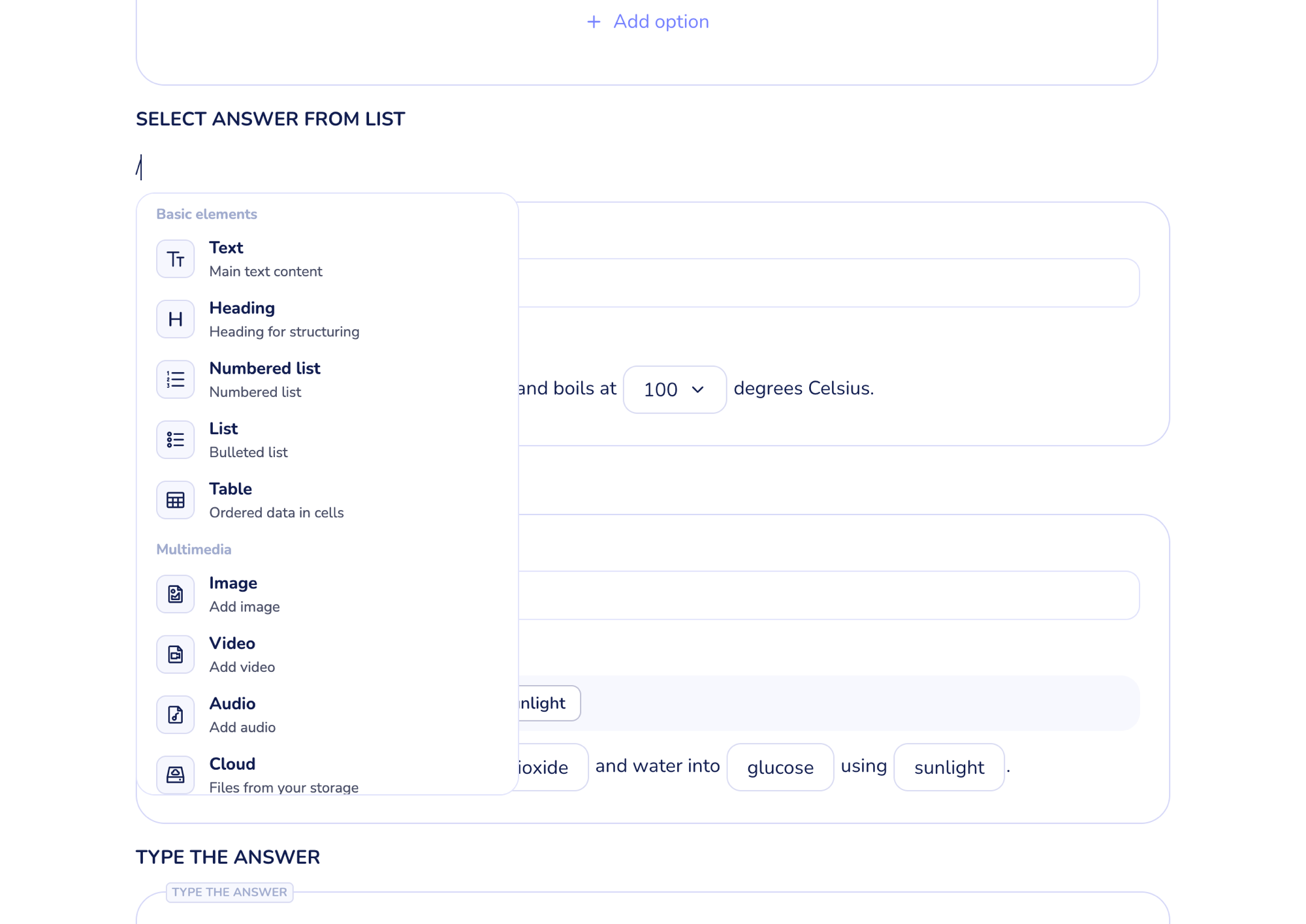
On a fresh empty guide you also see a Quick start panel at the bottom of the editor with one-click buttons for the most common blocks. The panel disappears as soon as you add anything; press / to bring up the slash menu instead.
For a full tour of the seven interactive widget types, see Add interactive exercises to a Study Guide.
Plan limits at a glance
| Capability | Free | Solo Pro | Solo Max | Business |
|---|---|---|---|---|
| Number of Study Guides | up to 3 | unlimited | unlimited | unlimited |
| Interactive exercises | ✓ | ✓ | ✓ | ✓ |
| Export to PDF | ✓ | ✓ | ✓ | ✓ |
| Folders to organize materials | — | ✓ | ✓ | ✓ |
| Assign as homework | — | — | ✓ | ✓ |
| Public share link | — | — | ✓ | ✓ |
For the full plan comparison, see Compare Class Spot plans.
Organize with folders
If you have more than a handful of guides, group them into folders. Click + next to Materials in the sidebar to create one; the folder shows up in both the sidebar and the list page. Drag a Study Guide tile into a folder, or open the kebab menu on any row and pick Move.
Folders are a Solo Pro feature. On the Free plan the + button still appears, but clicking it opens an upgrade prompt instead of creating a folder.
Tips
- Reuse, don't rebuild. A Study Guide stays in your library forever — open it again next week, duplicate it for a different class, or share the public link with a new student. You don't need to copy content between lessons.
- Cover image earns its keep. A clear cover makes the list page scannable when you have ten guides. Use the topic name in big letters or a single representative illustration.
- Outline first, exercises later. Type the whole text first, then go back and replace key sentences with interactive widgets. It reads better than building one widget at a time.
What to do if it doesn't work
The editor won't open or shows a loading spinner. Refresh the page (Ctrl/Cmd + R). The editor caches the document locally; a refresh forces a fresh load.
My cover image won't upload. Check the file is under 5 MB and in JPG, JPEG, PNG, or WEBP format. Other formats are not accepted. If you're under the limit and still see an error, try a different image to rule out a corrupted file.
I see "You can no longer create Study Guides" when I click + Create. You're on the Free plan and have reached the three-guide cap. Delete an old guide from the list page (kebab → Delete) to free up a slot, or upgrade to Solo Pro for unlimited guides.
Still stuck? Contact us via the in-product chat (the green bubble in the bottom-right of your cabinet) or info@classpot.com.
Related articles
- Add interactive exercises to a Study Guide
- Use a Study Guide during a lesson
- Share a Study Guide or assign it as homework
- Compare Class Spot plans