Use a Study Guide during a lesson
A Study Guide opens in the lesson room exactly the way you built it. The student sees the same content on their side, and any interaction — typing into a blank, dragging a chip, picking a quiz answer — streams to your screen in real time. This article covers the small set of in-lesson tools that exist only when a Study Guide is open in a live lesson.
Open a Study Guide in the lesson
Inside a lesson, open the materials panel on the left side of the screen and pick any Study Guide from your library. It loads on your side and pushes to every student in the room within a second or two.
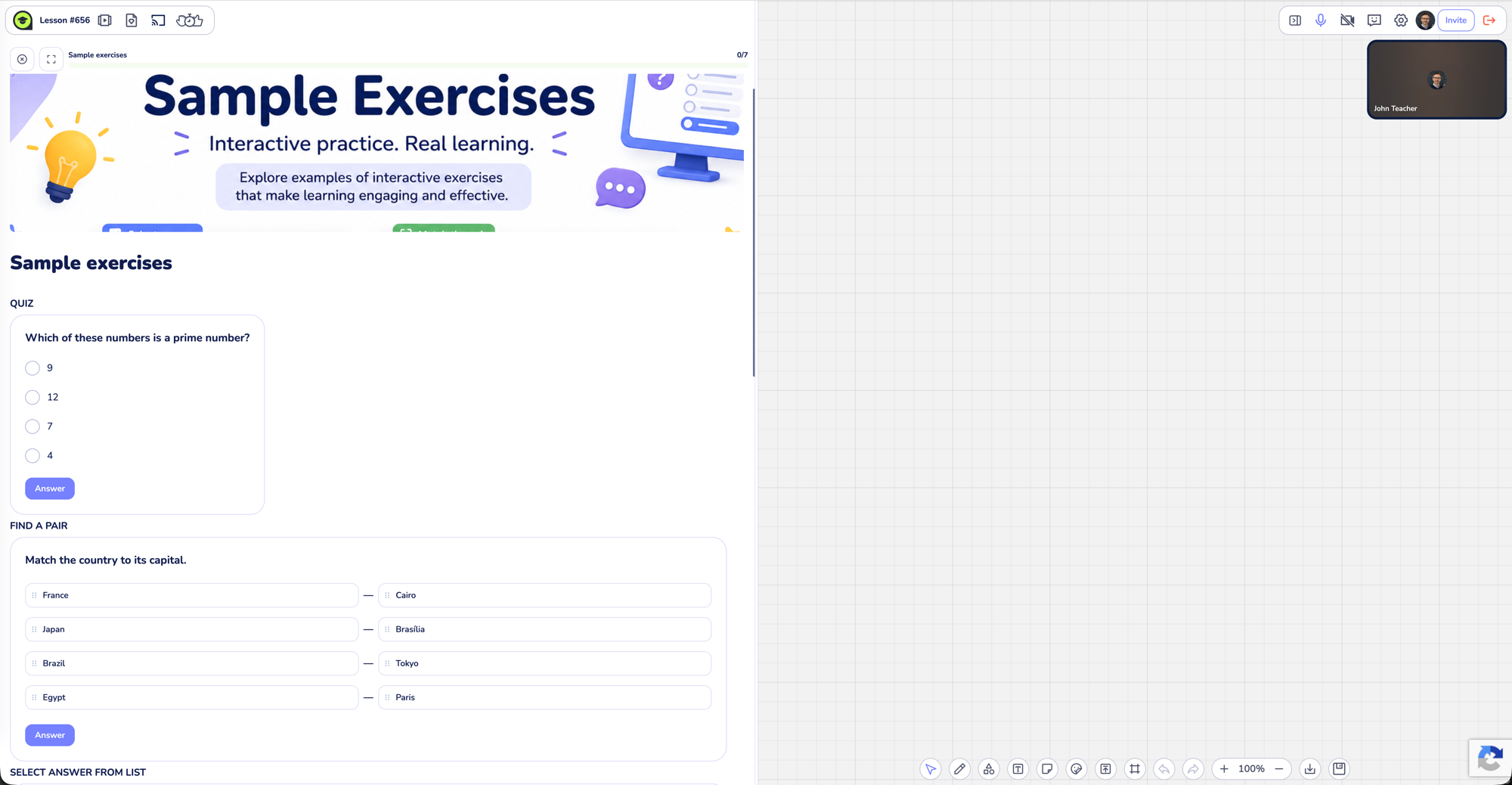
Only one Study Guide can be open at a time. Opening a second one from the panel replaces the first; any answers the student typed into the first guide are dropped from the live state when it closes. Their answers are still saved to the homework record if the guide was assigned as homework — but for an in-lesson guide that isn't homework, the state is ephemeral.
Close the guide by clicking the X in the panel header. Everyone in the lesson sees the panel close.
Move everyone to a specific block
Every block in a Study Guide has a small eye icon next to it during a lesson. Click it and the other side of the call scrolls to that block and briefly highlights it.
- When you click an eye, your students scroll and see the block flash.
- When a student clicks an eye, you scroll and see the block flash.
The tooltip wording matches who's about to move: a teacher viewer sees "Move student", a student viewer sees "Move teacher".
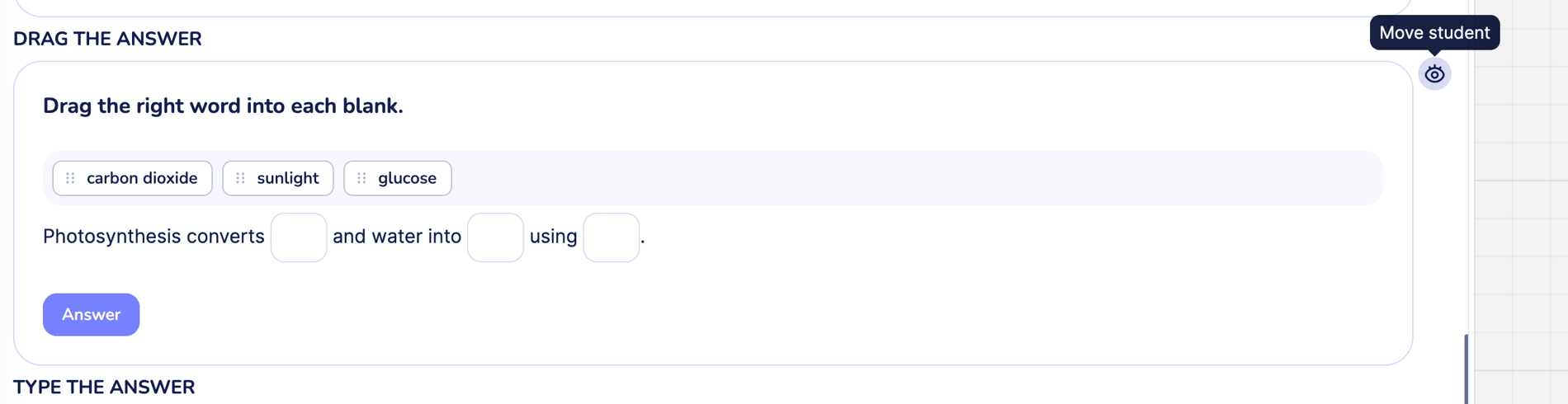
Use it for: "look at task 3 now", "scroll up to the diagram", "everyone find the third paragraph". Faster than asking the student to scroll on their own.
Highlight a passage or word
Select any text inside the Study Guide. A small two-button toolbar floats above the selection.
- The eye button on the left → "Pay attention". A blue highlight appears for one second on everyone's screen, then fades. Use it like a laser pointer while you talk through the text.
- The pen button on the right → "Highlight". A persistent yellow highlight appears and stays until you click it again to remove it. Use it to mark text the student should return to throughout the lesson.
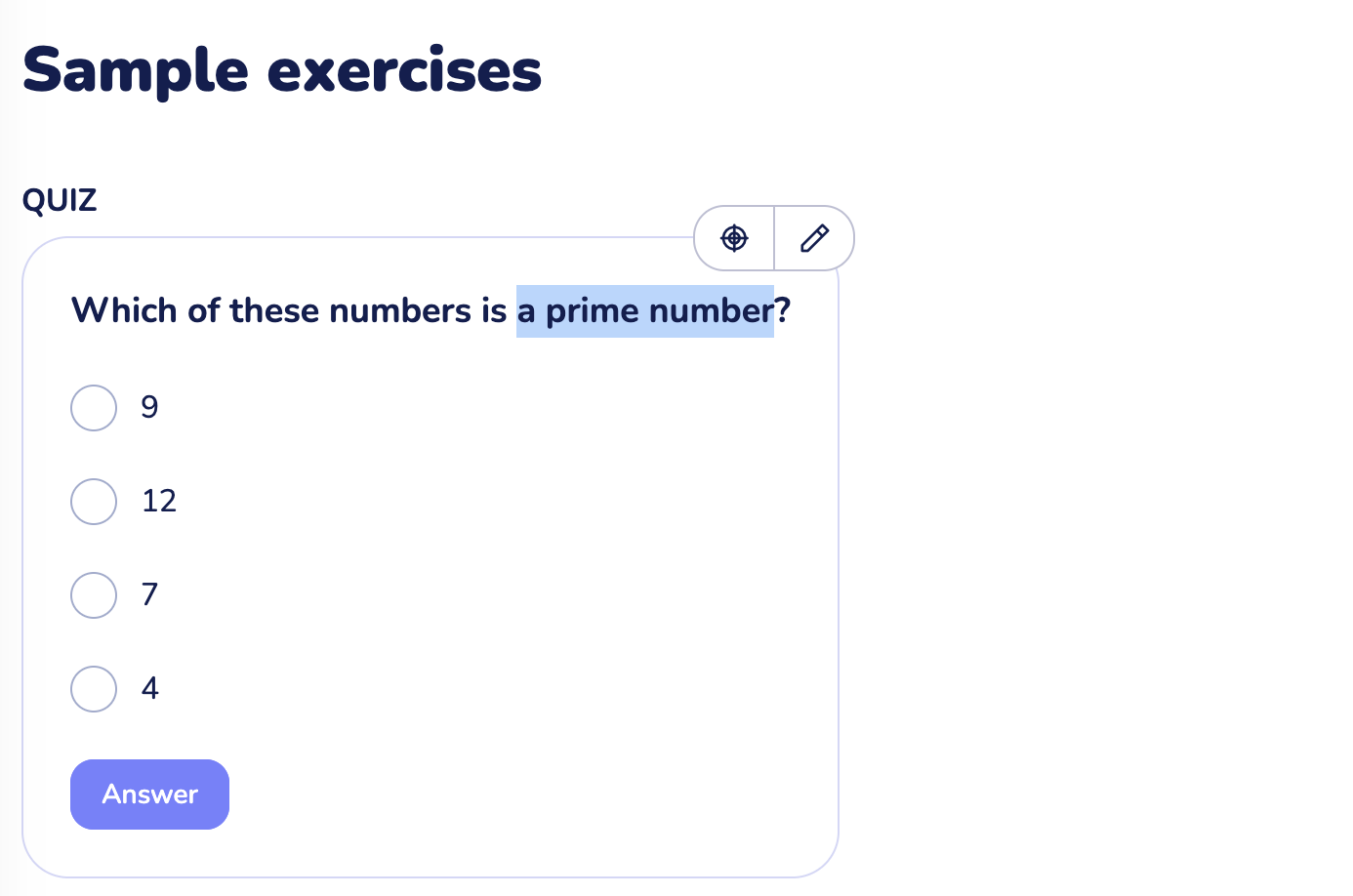
Both modes show the same highlight to every participant in the room. Only the teacher's selection triggers the toolbar — students can't highlight, only see your highlights.
What goes into the lesson recording
If you have lesson recording on (Solo Max and Business plans), everything you and your student see in the Study Guide ends up in the recording: typed answers, drag positions, selected variants, highlights, and the move-to-block flashes.
The recording captures the teacher's view of the lesson, which for a Study Guide is the same as the student's view because every interaction syncs between the two sides over the network. Watching the recording afterwards, you can see exactly which answers the student picked and where the conversation went.
The recording is video, not a structured event log — there's no rewind-to-this-answer button, but you can scrub the timeline like any other recording.
Tips
- Use Pay attention as a verbal punctuation. A one-second highlight while you say "this part is the key" is more visible than pointing at a paragraph the student has to find on their own.
- Stack persistent highlights for revision. Mark four or five sentences across a long Study Guide, then say "let's go back to the highlighted ones" at the end. The student sees the same marks on their screen.
- Don't fight the Move buttons. If you ask the student to scroll to task 3 and they're slow, just click the eye — it's faster and they don't need to know where task 3 is.
What to do if it doesn't work
The student doesn't see the Study Guide. First check that you actually picked one — the panel needs an open material to push anything. If it's open on your side but the student's panel is empty, ask them to refresh the lesson tab; the Study Guide will re-sync from your side.
The highlight toolbar doesn't appear when I select text. The toolbar shows up only inside a Study Guide opened in a live lesson, and only for the teacher. If you're previewing the guide from the materials page, or you're a student, the toolbar won't show.
The Move eye icon isn't there. Same condition — the eye icon is in-lesson only. Outside the lesson context (editor preview, homework view, public share), Study Guide blocks render without it.
Still stuck? Contact us via the in-product chat (the green bubble in the bottom-right of your cabinet) or info@classpot.com.
Related articles
- Create your first Study Guide
- Add interactive exercises to a Study Guide
- Share a Study Guide or assign it as homework
- Use the whiteboard during a lesson