Create your first Flash Cards deck
A Flash Cards deck is a set of two-sided cards — a term on one side, its definition, translation, picture, or audio on the other. You build the deck once, and Class Spot turns it into four self-grading practice games your students can play in a live lesson, as homework, or from a public link.
This article covers the basics: where to find Flash Cards, how to build a deck, how to add audio, and what each plan allows. For how the practice games work, see The four Flash Cards practice games. To use a deck with students, see Use Flash Cards in a live lesson and Share or assign Flash Cards as homework.
Where to find Flash Cards
Open Materials → Flash Cards in the sidebar. The page lists every deck in your workspace, with a search box, a sort dropdown, a + Create button, and a grid/list view toggle in the top-right — the same layout as Study Guides and Games.
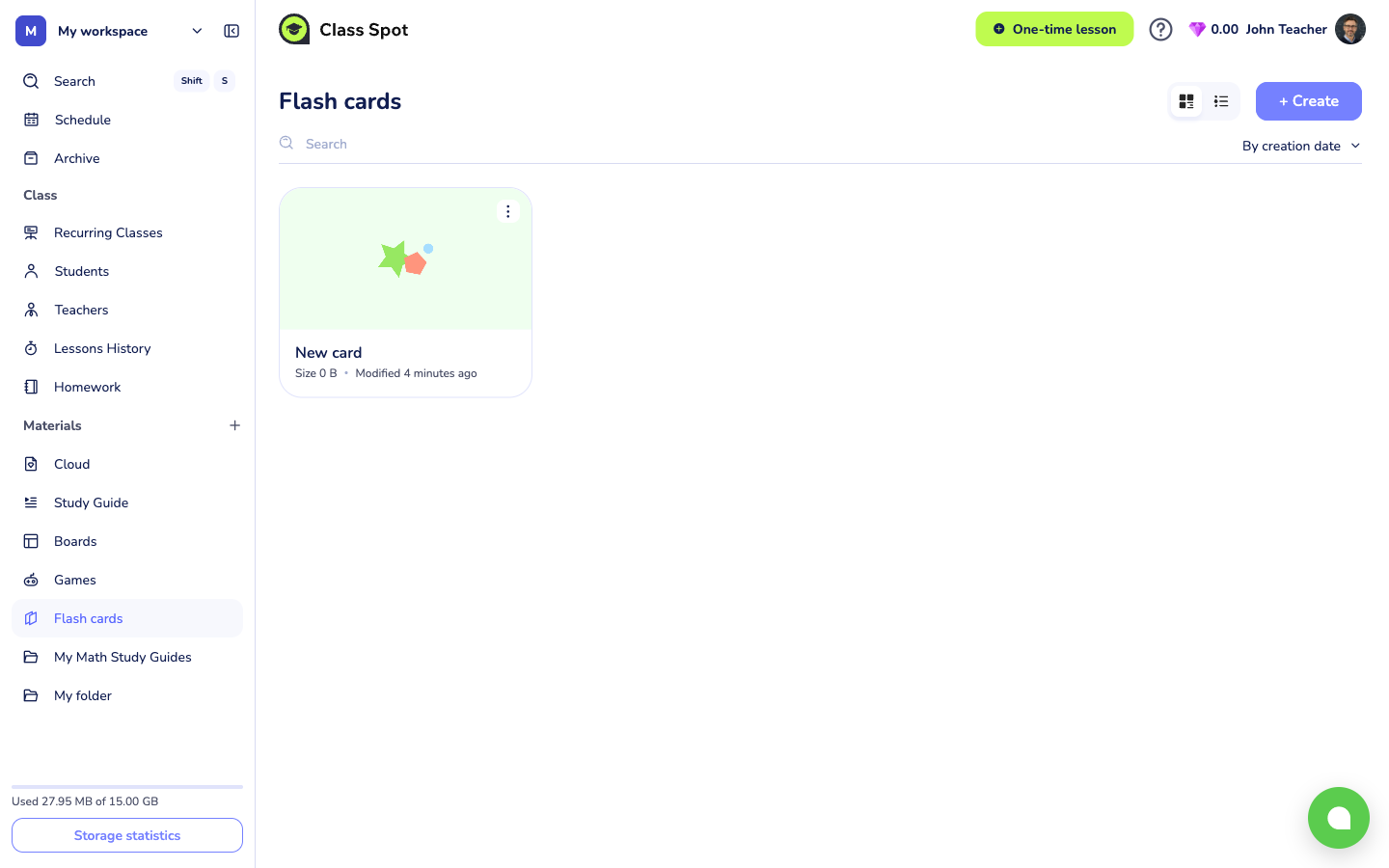
The default sort is By creation date. Change it from the dropdown above the list.
Create a new deck
- Click + Create. Class Spot creates a deck titled "New card" and opens it in the editor.
- Click the title field at the top and type your own name — the placeholder reads "Give it a name". A clear title matters: a fresh deck is called "New card" until you rename it, and a list of decks all called "New card" is hard to scan.
- (Optional) Click the Cover: slot above the first card to upload a cover image. Maximum size 5 MB; the cover shows on the list page and on the public share link.
Every new deck starts with three empty cards ready to fill in — you don't need to add the first ones by hand.
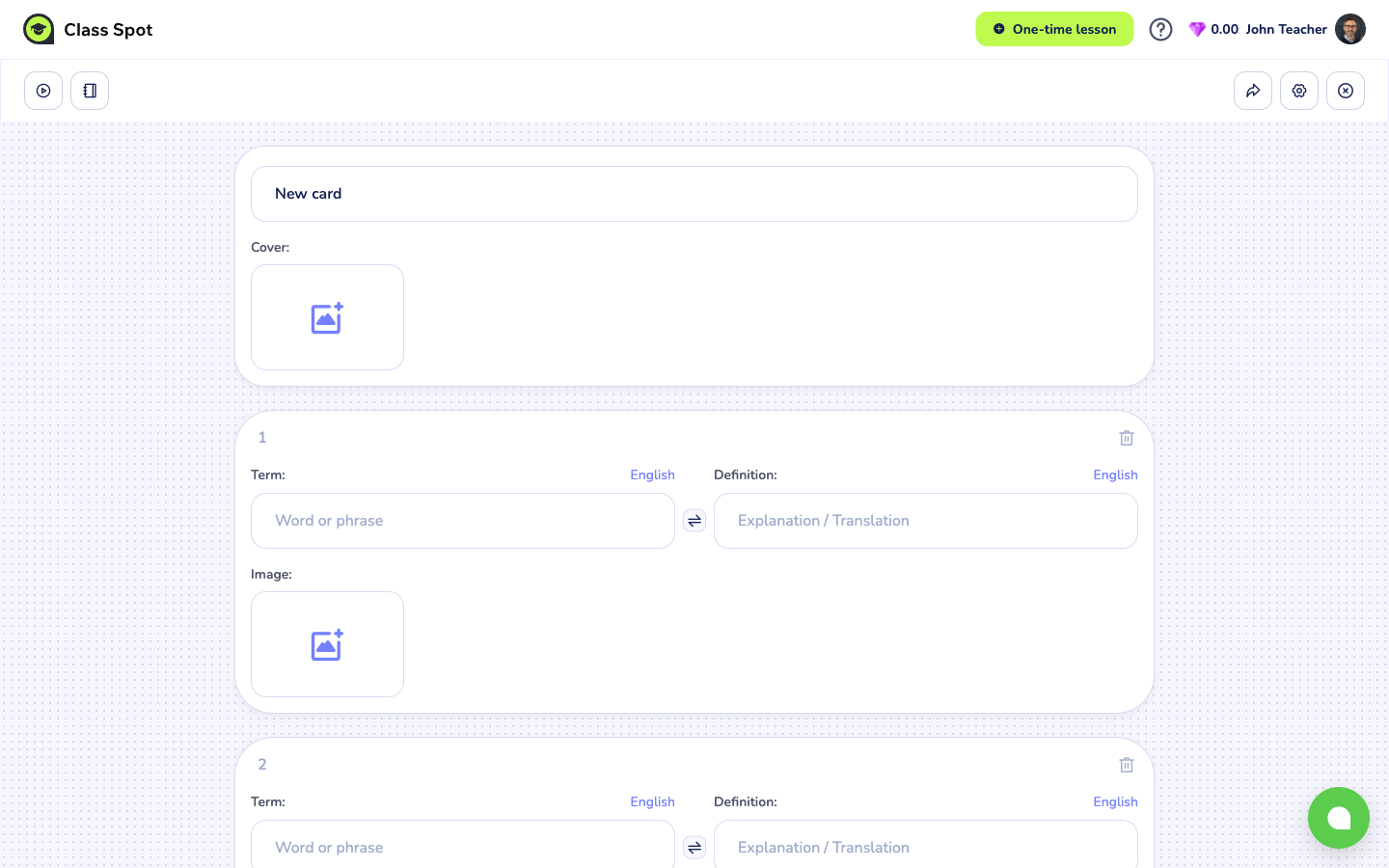
The whole deck saves automatically as you work — there is no Save button.
Fill in a card
Each card has four fields, top to bottom:
- Term: — the word or phrase you want the student to learn. Placeholder: "Word or phrase". A language picker next to the label sets the language for that side (it drives text-to-speech and typed-answer checking). As you type, a dictionary dropdown suggests matching words.
- A double-arrow swap icon between the two sides — swaps the Term and Definition values in place, handy if you entered them the wrong way round.
- Definition: — the meaning, translation, or explanation. Placeholder: "Explanation / Translation", with its own language picker.
- Image: — drop or upload one image per card (JPG, JPEG, PNG, or WEBP).
Add more cards with + Add a card below the last one. Remove a card with the trash icon ("Remove card") at the top-right of the card.
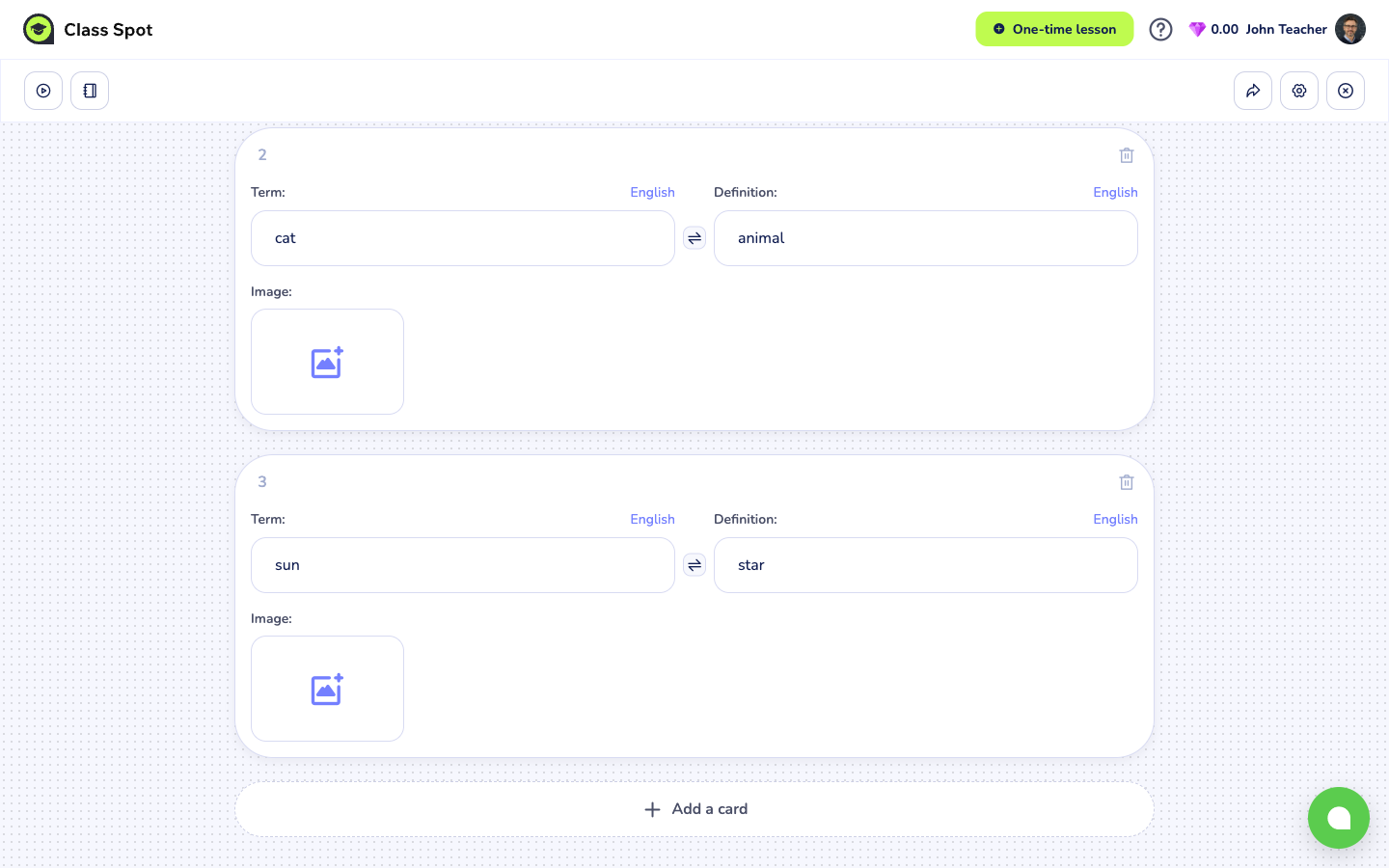
You can format the text on each side — focus a field and a toolbar appears with font, bold, font size, and text colour controls.
Add audio to a card
Each side of a card can carry its own audio. Click the audio icon (🎵) on the card to open the Audio window, which has three tabs:
- Text — type some text and Class Spot generates speech from it (text-to-speech). Pick a Language and a Voice (Female or Male). To mark word stress, put a + before the stressed vowel; use a - to add a pause between words.
- Record — record yourself through your microphone right in the browser.
- Upload — upload a ready audio file. MP3 or WAV, up to 50 MB.
Eight languages are available for both audio and the per-card language picker: Русский, English, 简体中文, Français, Deutsch, Español, Italiano, and العربية.
Choose which games and how it looks
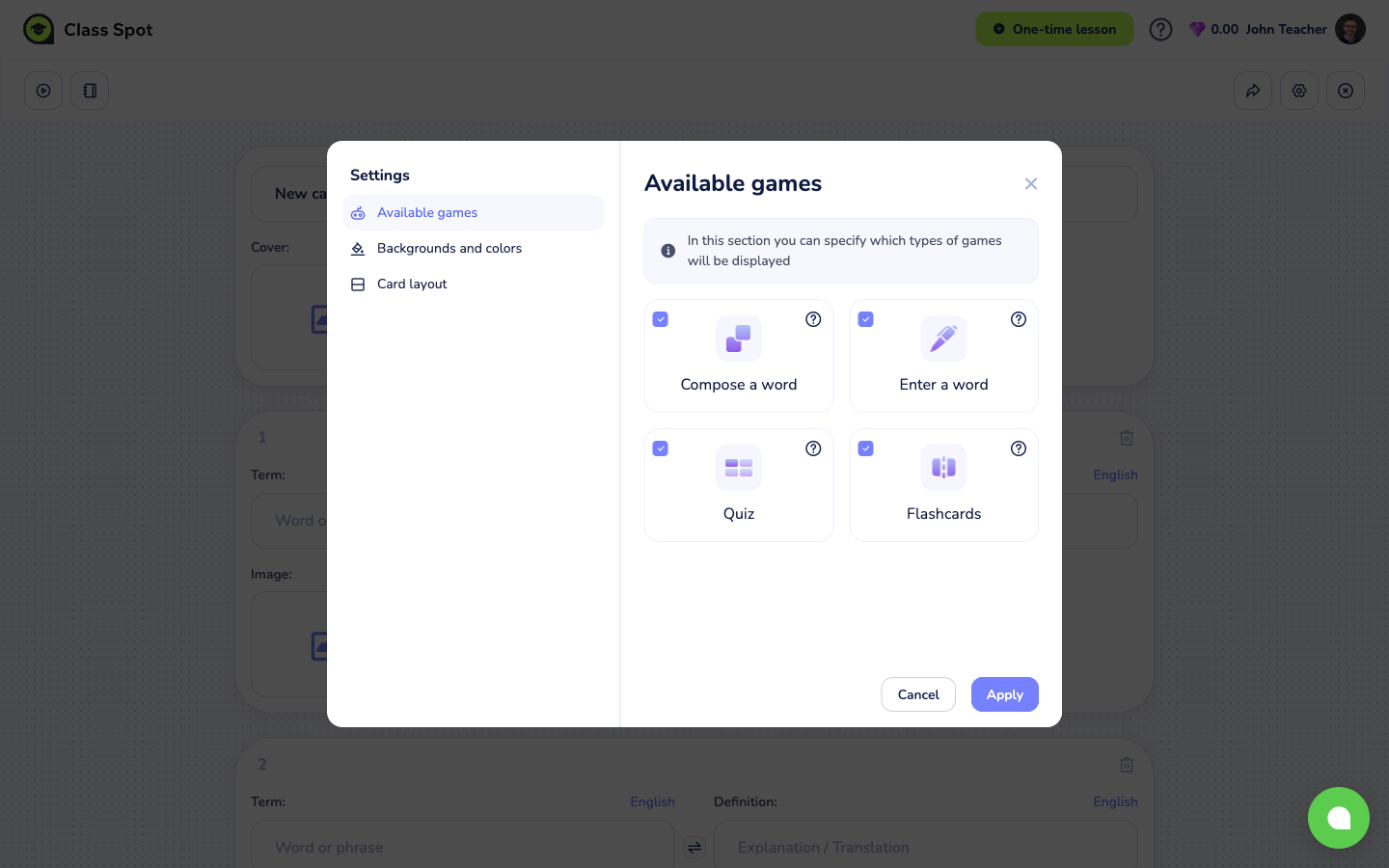
Click the gear icon in the editor header to open Settings. It has three tabs:
- Available games — turn each of the four practice games on or off: Flashcards, Quiz, Enter a word, and Compose a word. All four are on by default. See The four Flash Cards practice games for what each one does.
- Backgrounds and colors — pick the deck's background colour.
- Card layout — keep Automatic layout on (the card adjusts to your text length), or switch to a fixed Horizontal or Vertical layout.
Click Apply to save your choices, or Cancel to discard them.
Plan limits at a glance
| Capability | Free | Solo Pro | Solo Max | Business |
|---|---|---|---|---|
| Number of Flash Cards decks | up to 3 | unlimited | unlimited | unlimited |
| Four practice games | ✓ | ✓ | ✓ | ✓ |
| Open a deck in a lesson | ✓ | ✓ | ✓ | ✓ |
| Assign as homework | — | — | ✓ | ✓ |
| Public share link | — | — | ✓ | ✓ |
For the full plan comparison, see Compare Class Spot plans.
Tips
- Aim for at least three cards. The practice games draw their multiple-choice options and scrambles from the other cards in the deck, so a deck with one or two cards plays poorly. If you try to preview a near-empty deck, Class Spot reminds you to "Add at least 3 cards to get decent results".
- Keep terms short for the word games. The "Compose a word" game only works on single words up to twelve letters, with no spaces or punctuation. Long phrases still work for the other three games.
- Use the language picker per card. Setting the right language on each side makes text-to-speech sound correct and makes typed-answer checking match the right keyboard.
What to do if it doesn't work
My cover image won't upload. Check the file is under 5 MB and in JPG, JPEG, PNG, or WEBP format. Other formats — including video — are not accepted on cards.
I see "You have reached your limit for creating interactive cards" when I click + Create. You're on the Free plan and have reached the three-deck cap. Delete an old deck from the list page, or upgrade to Solo Pro or above for unlimited decks.
My deck won't save and shows an error. A single deck can hold roughly a few dozen cards. Very large decks — lots of long text and images — can hit the size limit and fail to save. Split a very large deck into two.
Still stuck? Contact us via the in-product chat (the green bubble in the bottom-right of your cabinet) or info@classpot.com.
Related articles
- The four Flash Cards practice games
- Use Flash Cards in a live lesson
- Share or assign Flash Cards as homework
- Compare Class Spot plans