Share or assign Flash Cards as homework
A Flash Cards deck is just as useful outside the lesson where you built it. You can assign it to students as homework that scores itself, or hand it to anyone as a public link that opens without a login. Both options live in the deck editor's header.
Share a deck with a public link
Click the Share icon in the editor header. Class Spot generates a public link and copies it to your clipboard, with a "Link copied" message to confirm.
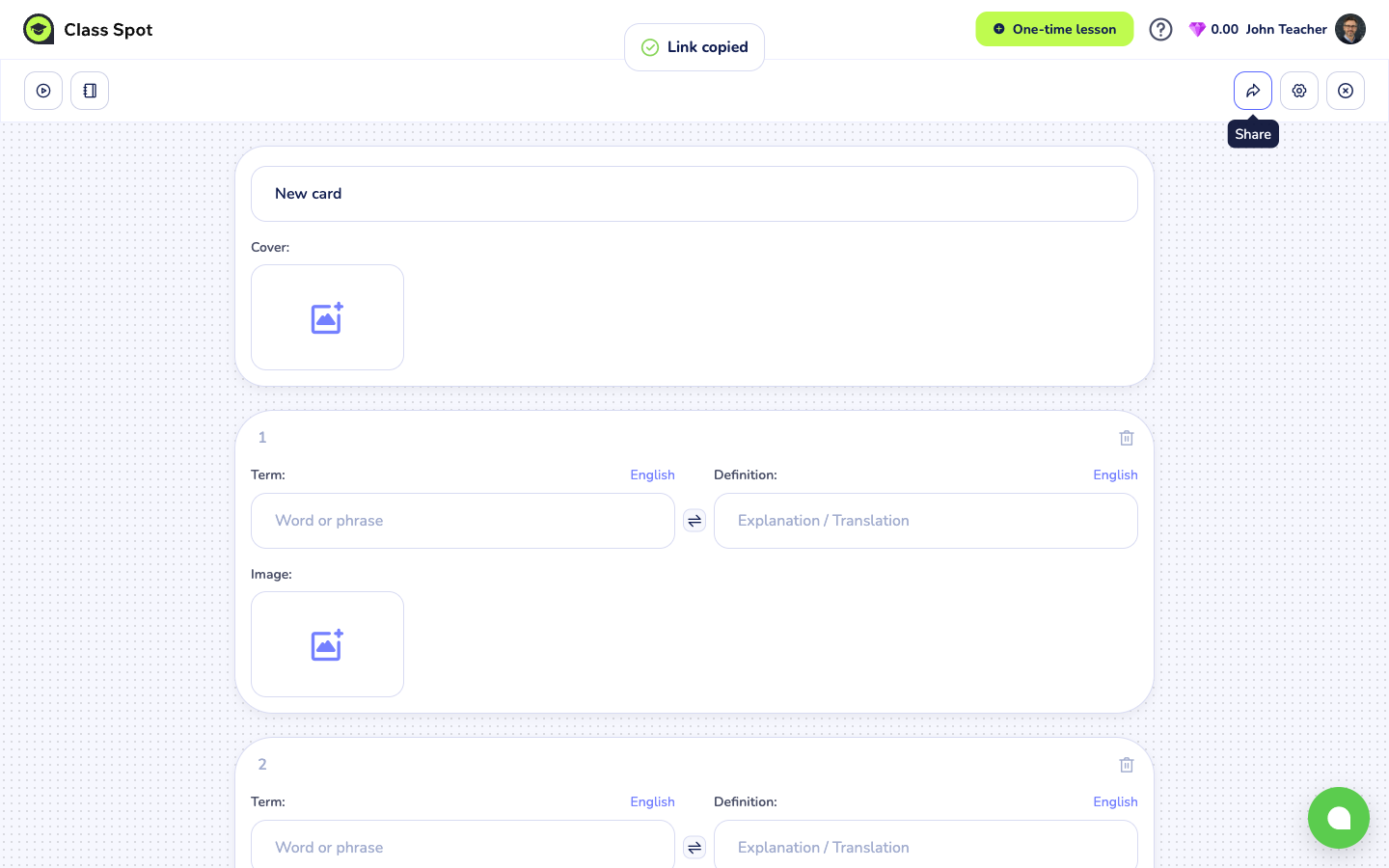
Paste the link into chat, an email, or a class group. The link looks like https://classpot.com/class/shared-material/<id> — anyone who opens it can practise the whole deck without signing in. Their answers stay on their own device; they don't come back to you.
The Share button is a Solo Max and Business feature. On Free and Solo Pro plans, clicking Share opens an upgrade prompt.
The shared link can't be switched off from the cabinet today. Once you've shared a link, anyone who has it can open the deck as long as you keep it. To take a link down, contact us via the in-product chat (the green bubble in the bottom-right of your cabinet) or info@classpot.com — we can remove the share on our side.
Assign a deck as homework
Click the Assign homework icon (the notebook) in the editor header. A window opens titled Assign homework.
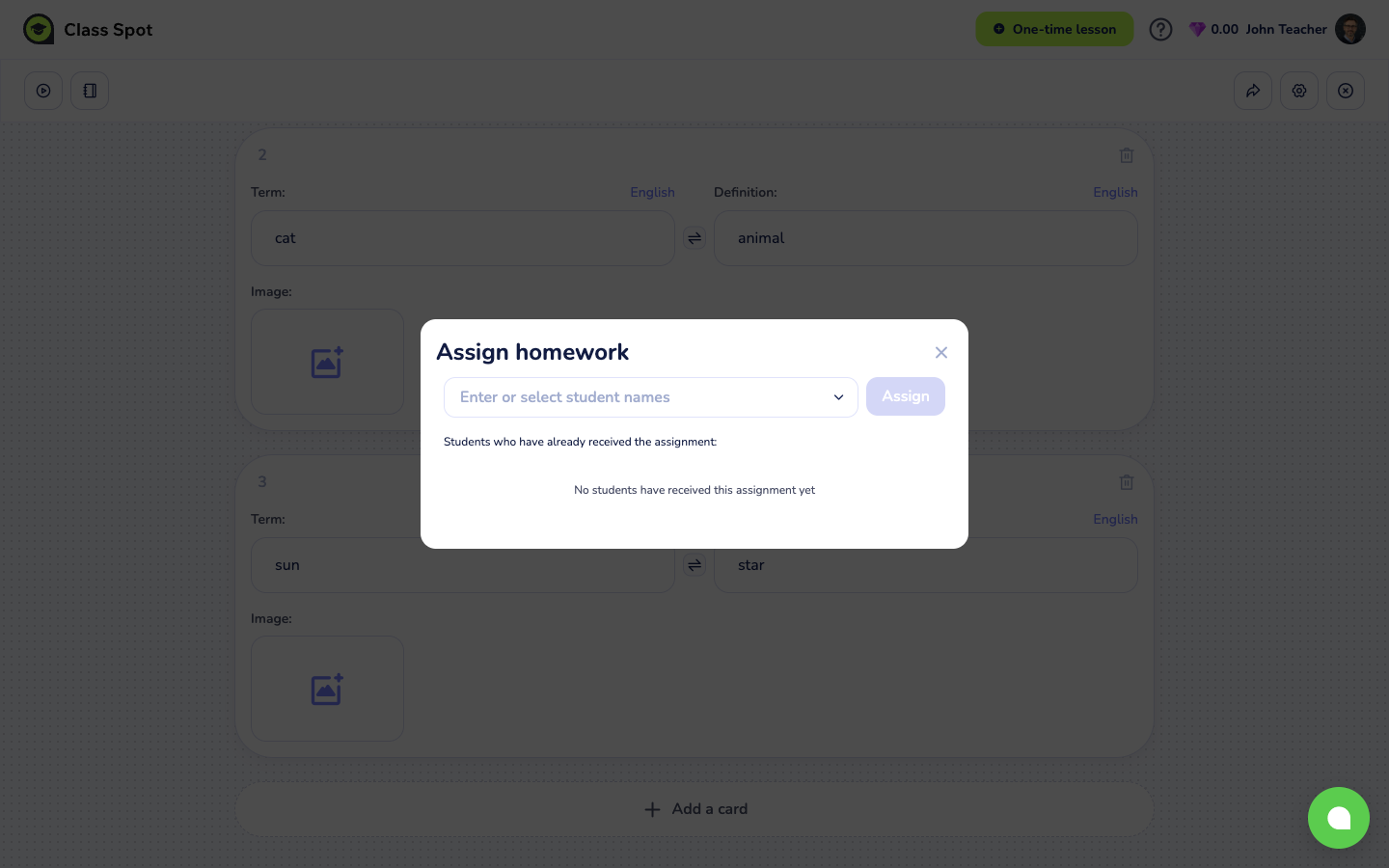
- Click the field and pick recipients. The list mixes individual students and whole classrooms — start typing to filter by name.
- Click Assign. The student gets the homework right away in their Homework tab.
- Add more recipients without closing the window — each one appears in the "Students who have already received the assignment" list below the field. From there you can open a student's results (the book icon) or take the assignment back (the trash icon).
Assigning homework is a Solo Max and Business feature. On Free and Solo Pro plans, clicking Assign opens an upgrade prompt.
What the student does
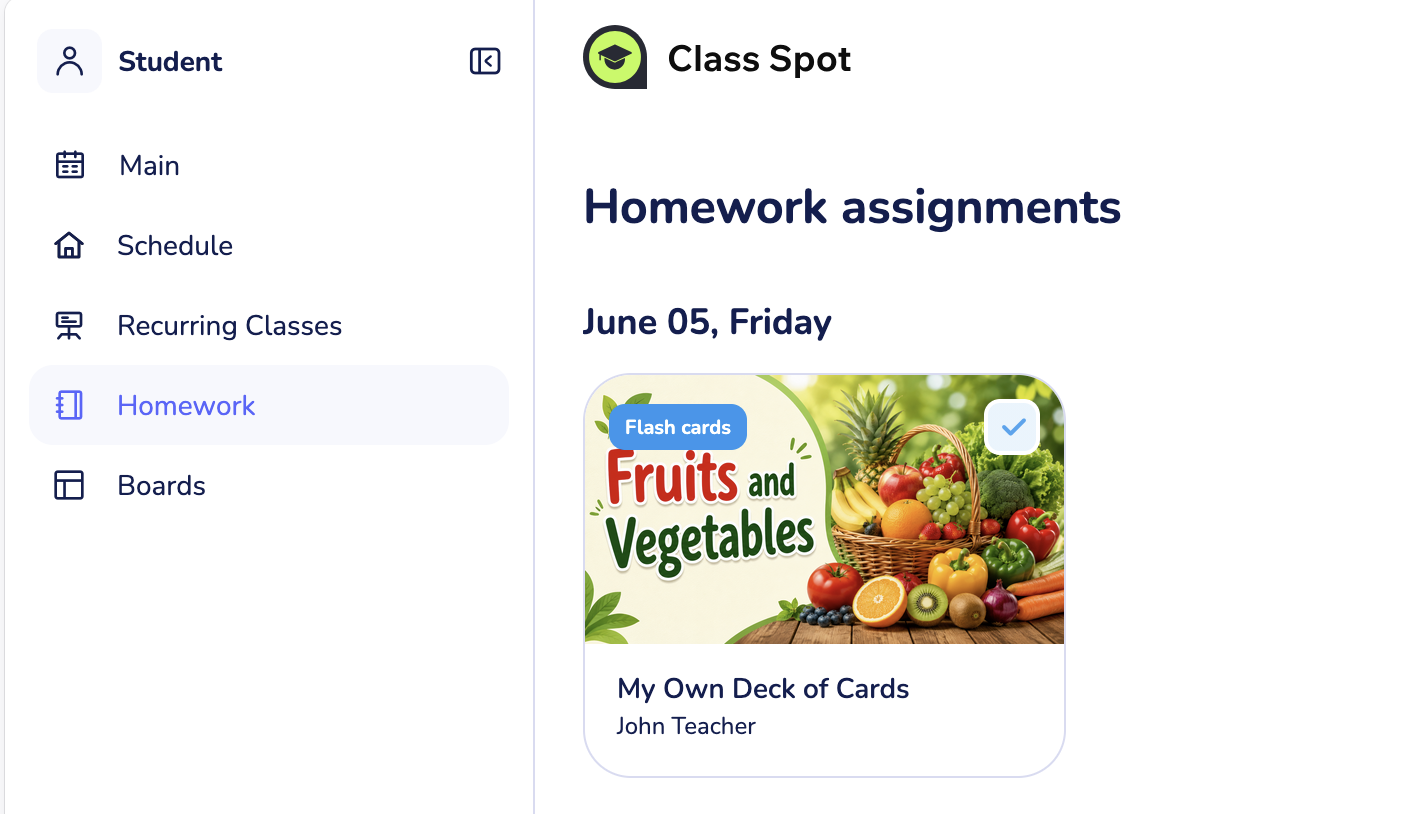
The student opens the deck from their Homework tab and plays through the same four practice games. Everything is scored automatically — there's nothing for you to mark. When they finish, they see a results screen with their score, the time they spent, and their Correct / Incorrect / Missed counts, plus a Start over button if they'd like another attempt.
See how students did
Open Homework from your sidebar to see every assignment. Each row shows the student, the deck, a status that flips from Not completed to Completed when they finish, and their Score out of 100. Click the book icon on any row to open that student's full Result card — total questions, time spent, score, and the Correct / Incorrect / Missed breakdown.
Plan limits at a glance
| Capability | Free | Solo Pro | Solo Max | Business |
|---|---|---|---|---|
| Open a deck in a lesson | ✓ | ✓ | ✓ | ✓ |
| Assign as homework | — | — | ✓ | ✓ |
| Public share link | — | — | ✓ | ✓ |
For the full plan comparison, see Compare Class Spot plans.
Tips
- Use homework for tracking, share for one-offs. Homework gives you a per-student score and the option to take the assignment back. A share link is faster but anonymous — good for a public review set, less useful for following progress.
- Send a deck to a whole classroom at once. Pick a classroom from the Assign list instead of adding students one by one; each student's result is still tracked individually.
- Let students retake. The Start over button means a deck doubles as self-study — assign it once and students can drill it until it sticks.
What to do if it doesn't work
Clicking Share or Assign opens an upgrade prompt. You're on Free or Solo Pro. Both features are Solo Max and above. See Compare Class Spot plans.
A student says they didn't get the homework. Open the Assign homework window again and check the "already received" list. If the student isn't there, the assignment didn't go through — click their name again. If they are listed but don't see it, ask them to refresh their Homework tab.
I shared a link and want to take it down. The cabinet doesn't have a "Stop sharing" button yet. Contact us via the in-product chat (the green bubble in the bottom-right of your cabinet) or info@classpot.com and we'll remove the share on our side.
Still stuck? Contact us via the in-product chat (the green bubble in the bottom-right of your cabinet) or info@classpot.com.
Related articles
- Create your first Flash Cards deck
- The four Flash Cards practice games
- Use Flash Cards in a live lesson
- Compare Class Spot plans