The four Flash Cards practice games
You build a deck of cards once, and Class Spot turns it into practice automatically. From the cards you fill in, it generates four kinds of self-grading mini-games and runs them one after another — the same way in a live lesson, as homework, and on a public link. The student just plays; the answers are checked for you.
This article explains what each game asks the student to do, how grading and hints work, and how to pick which games run.
How the games are built from your cards
You don't create the games by hand. When a deck opens for practice, Class Spot builds one round per card for every game you've turned on. A deck of five cards with all four games on produces twenty rounds; the same deck with two games on produces ten. The student moves through them with the ← / → arrows, and a counter at the top shows "round N of M".
Which games run is up to you. Open the deck, click the gear icon in the editor header, and use the Available games tab in Settings to switch each game on or off. All four are on by default.
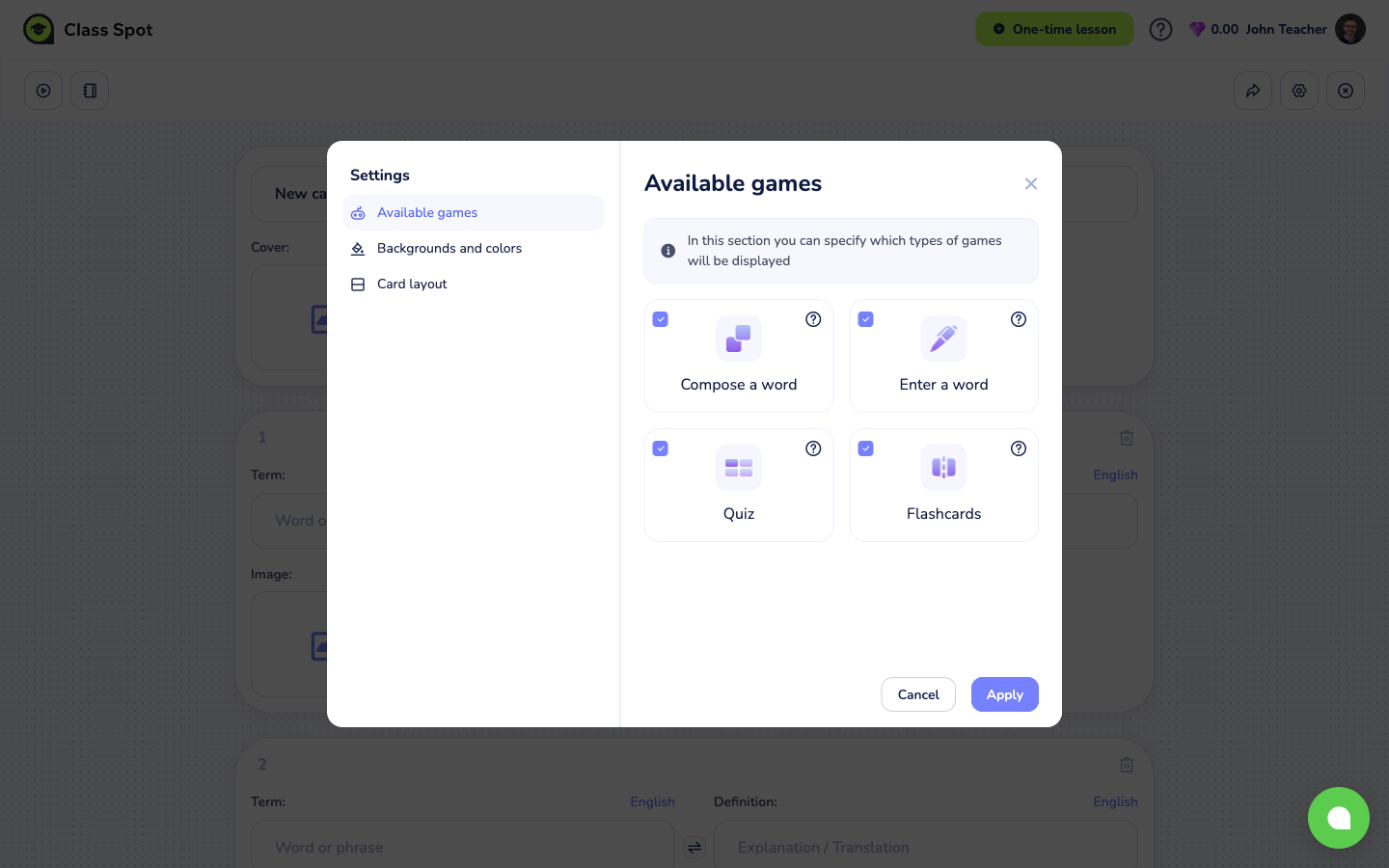
Inside the cabinet these are labelled "games", and the first one is written as one word — "Flashcards" — even though the deck itself is Flash Cards (two words). They're the same idea at different sizes: the deck is the whole set, a game is one way to practise it.
Flashcards
The classic flip card. The student sees one side of the card, thinks of the answer, then taps to flip it and check. They mark themselves: Got it or No idea. Best for a first pass through new material, when there's nothing to grade yet — just recognition.
Quiz
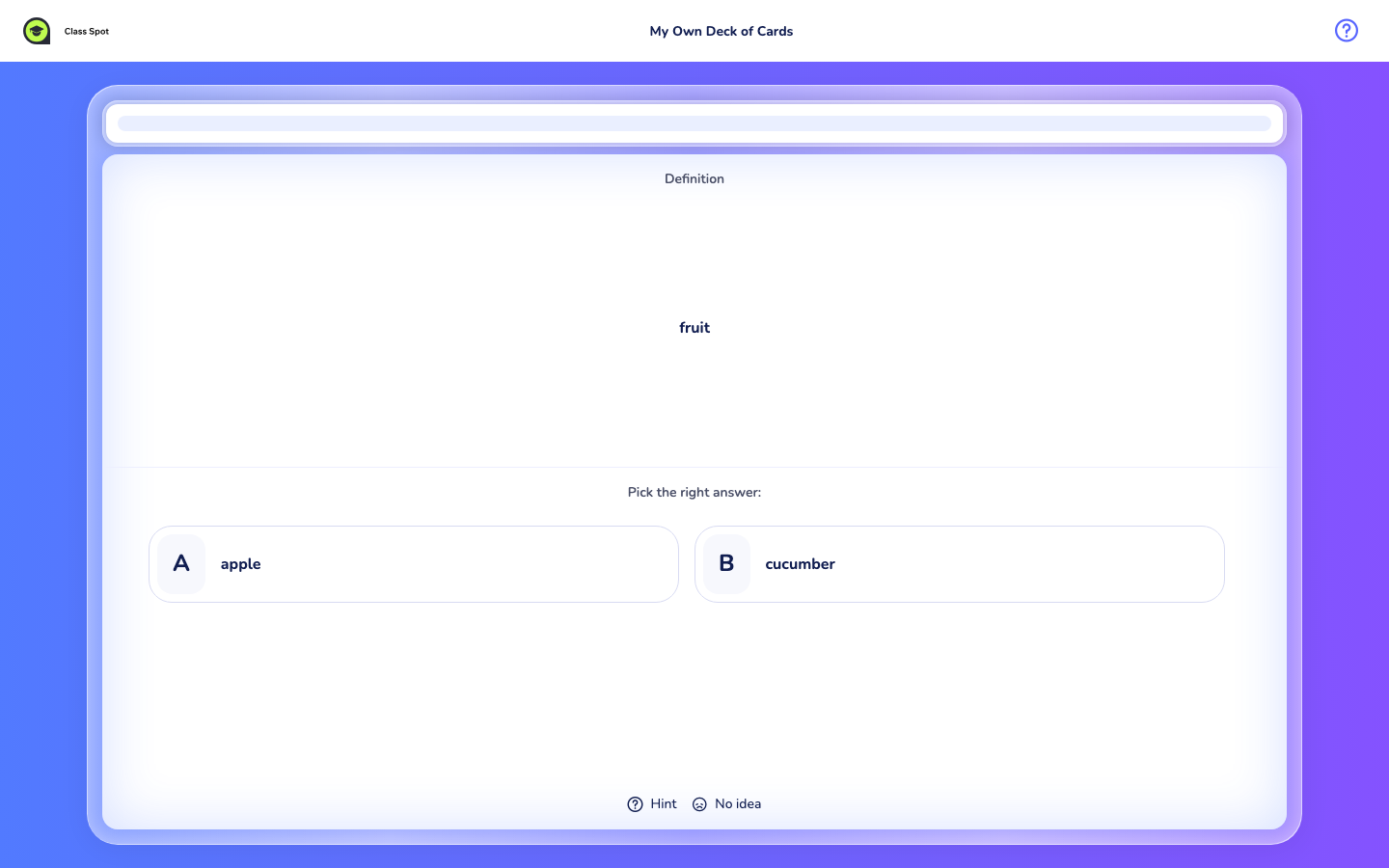
A multiple-choice question. The student sees the definition and picks the matching term from several options. The wrong options are pulled from the other cards in the deck, so a richer deck makes a better quiz. Auto-graded the moment they choose.
Enter a word
The student sees the definition and types the term into a text box, then submits. The answer is checked against the card, using the language you set on that side — so the keyboard and accents match. Capitalisation and stray spaces are forgiving. Best for spelling and active recall.
The input prompt names the expected language, e.g. "Type your answer in English". If the answer is wrong, the student sees a gentle nudge and can try again.
Compose a word
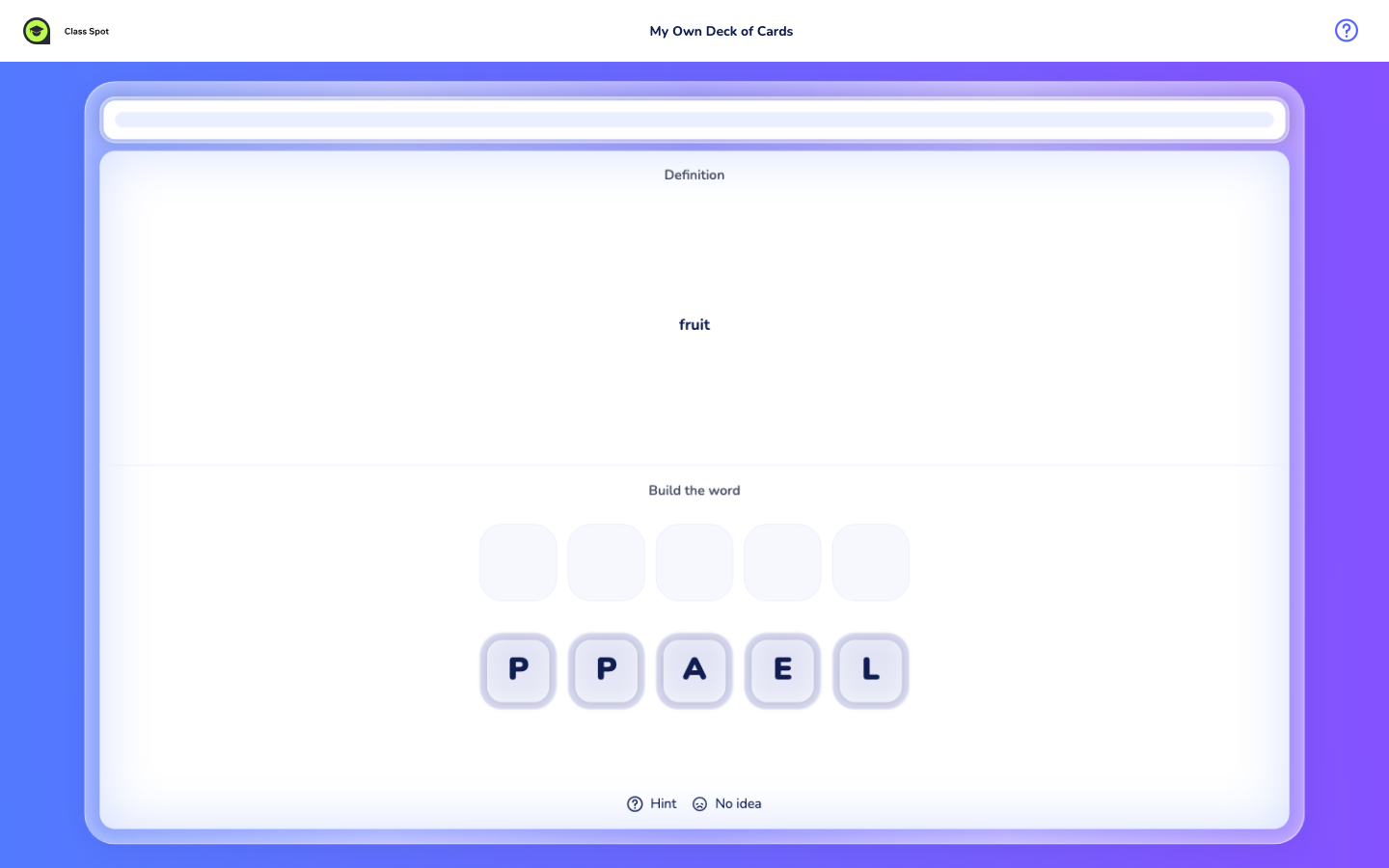
The student sees the definition and rebuilds the term from shuffled letter tiles, dragging them into the right order. This game only appears for cards whose term is a single word of up to twelve letters with no spaces or punctuation — longer terms and phrases are skipped for this game but still used by the other three.
Hints and skipping
Every game except plain Flashcards offers a ? Hint and a No idea option at the bottom:
- Enter a word and Compose a word — each hint reveals one more letter of the answer. Keep clicking for more letters.
- Quiz — one hint removes half of the wrong options, leaving the student a smaller choice. It works once.
- No idea skips the current round without committing an answer; it counts as missed.
Using hints is part of practice, but lean on them sparingly — a round solved with the answer half-revealed isn't the same as one recalled from memory.
How grading works
Every game here is graded automatically — there's no manual marking for Flash Cards. As the student finishes, Class Spot tallies three counts: Correct, Incorrect, and Missed (skipped rounds). At the end of the deck the student sees a results screen with a score and an encouraging message. How those results reach you depends on where the deck is played — see Use Flash Cards in a live lesson and Share or assign Flash Cards as homework.
Tips
- Turn off games that don't fit your material. A deck of long phrases plays badly as "Compose a word" — switch it off in Settings and keep Quiz and Flashcards on.
- Add images and audio for variety. A card with a picture or a recorded pronunciation makes Flashcards and Quiz richer than text alone.
- Three cards is the floor, not the goal. Quiz needs other cards to draw wrong options from. Five to fifteen well-made cards per deck plays better than two long ones.
What to do if it doesn't work
"Compose a word" never shows up for some cards. That game only runs on single words up to twelve letters with no spaces or punctuation. Cards with phrases, numbers, or long words are used by the other three games instead — this is expected.
The Quiz keeps showing the same few wrong options. The wrong options come from the other cards in the deck. A small deck has few to choose from. Add more cards and the quiz gets more varied.
I previewed the deck and got a message about adding more cards. A near-empty deck can't generate good practice. Add at least three well-filled cards and preview again.
Still stuck? Contact us via the in-product chat (the green bubble in the bottom-right of your cabinet) or info@classpot.com.
Related articles
- Create your first Flash Cards deck
- Use Flash Cards in a live lesson
- Share or assign Flash Cards as homework
- Compare Class Spot plans