Use Flash Cards in a live lesson
A Flash Cards deck works as a live activity for the whole room. You open it from inside the lesson, every student practises at their own pace, and you can watch each one's progress in real time or compare the whole group on a leaderboard.
Open a deck in the lesson
Inside a lesson, open the materials panel and pick a Flash Cards deck from your library. The deck loads on the left side of the lesson screen — the whiteboard stays on the right — and pushes to every student in the room within a second or two.
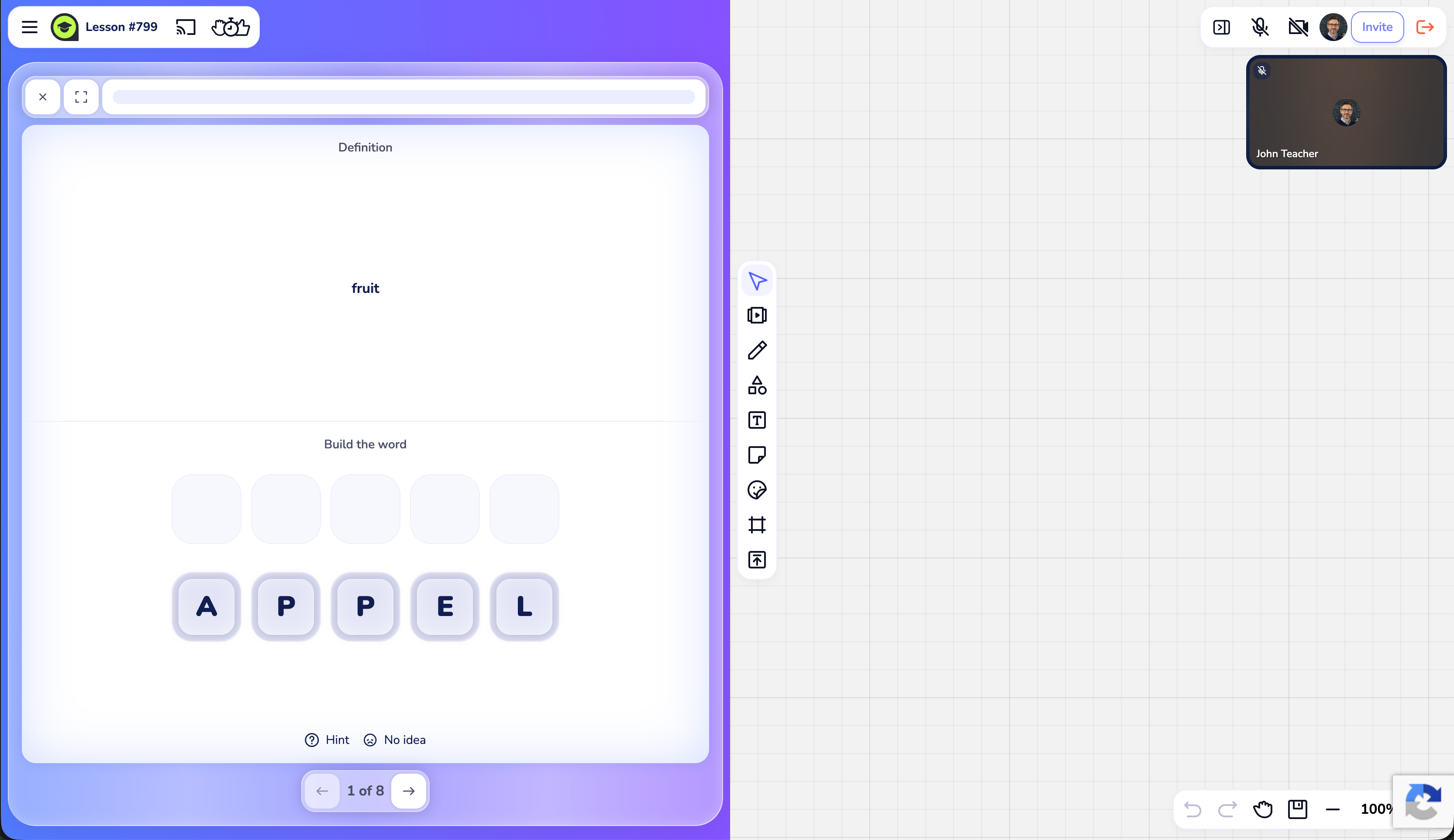
Each student gets their own copy of the practice and works through it independently — there's no "everyone on the same card" lockstep. Closing the panel (or opening a different material) removes the deck from everyone's screen.
Watch each student's progress
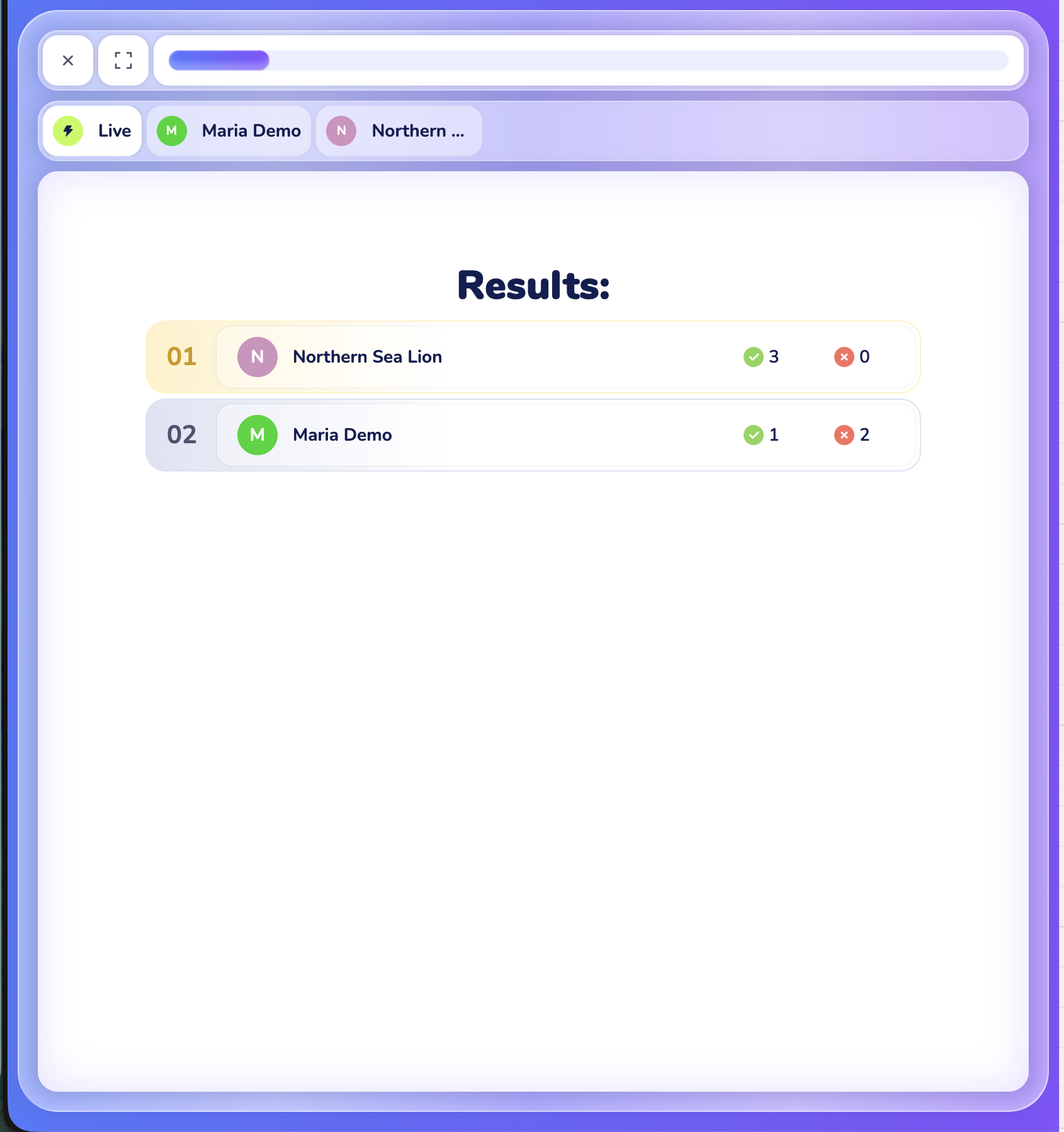
At the top of the deck you'll see a green Live indicator followed by a coloured chip for each person in the room.
- As the teacher, click any student's chip to switch the view to that student's session — you see exactly which round they're on and what they've answered, updating live. Click another chip to follow someone else.
- Students see the chips too, but can't switch — each student only ever sees their own practice.

This lets you keep an eye on a class as they work — spot who's stuck, who's racing ahead, and who needs a nudge, without interrupting anyone.
Compare everyone on the leaderboard
Click the Live tab itself (to the left of the chips) to switch from one student's view to the Results leaderboard — a ranked table of the whole room. Each row shows a student, their Correct count, and their Incorrect count, sorted by Correct count with the leader on top and their row highlighted.
The leaderboard updates live as students answer, so you can put it on screen during the activity to add a bit of friendly competition, then flip back to an individual chip when you want to check on one student.
The end-of-deck screen
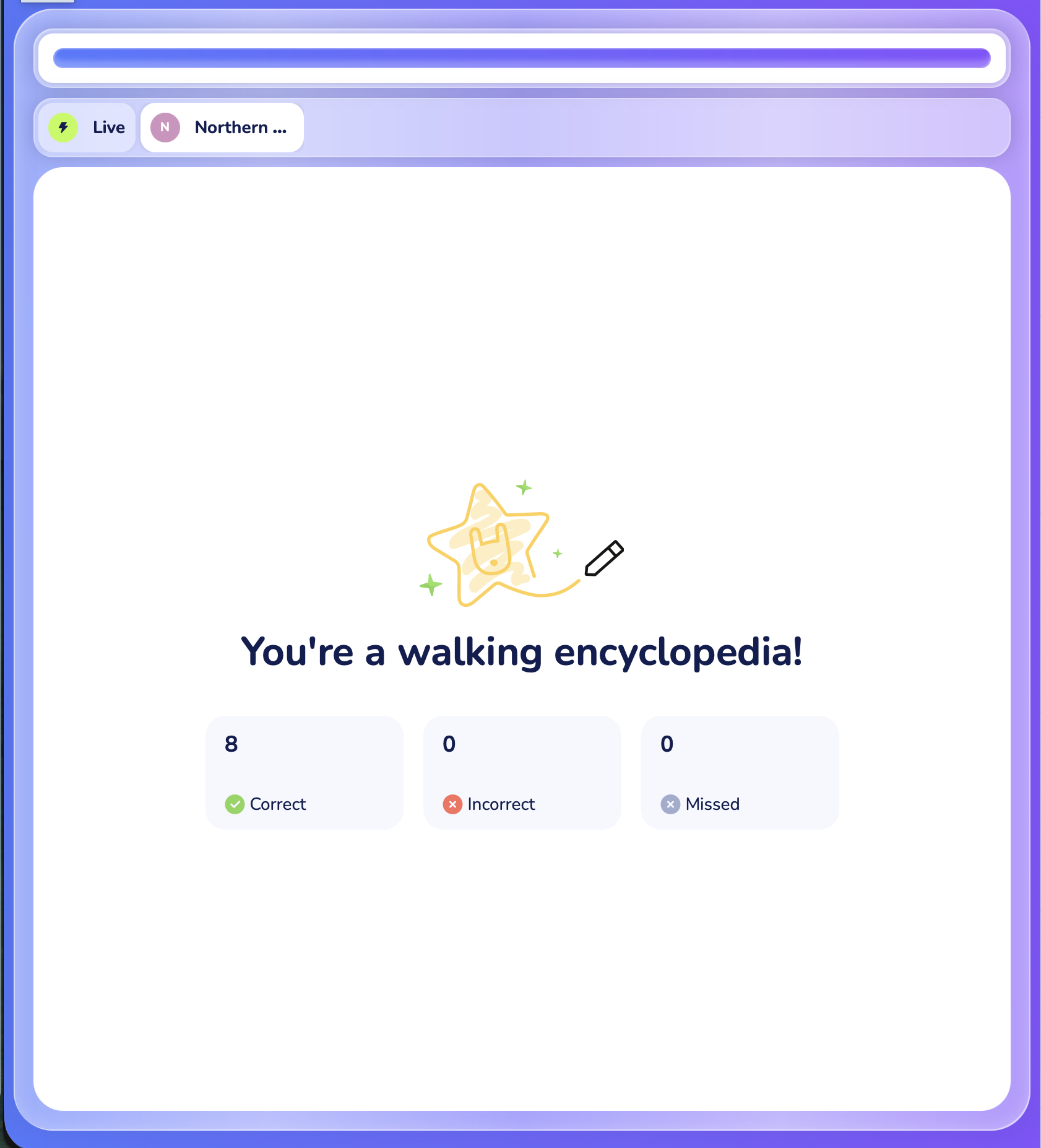
When a student finishes the deck, they see their own results screen: a score, a short encouraging message that changes with how well they did, and three counts — Correct, Incorrect, and Missed. Each student sees only their own screen.
What goes into the lesson recording
If lesson recording is on (Solo Max and Business plans), the deck is captured along with the rest of the lesson. The recording follows your view — so whichever student chip or the Results leaderboard you have open is what shows in the recording at that moment. If you want a student's progress to appear in the recording, click their chip while it's on screen.
Tips
- Put the leaderboard on screen for a warm-up. A quick round of an easy deck with the Results table visible turns review into a game and gets a class energised at the start of a lesson.
- Follow the quiet student. Click the chip of a student who hasn't said much — you can see whether they're keeping up without singling them out by asking.
- Build the deck before the lesson. Decks open instantly from your library, so prepare them ahead of time rather than building during class. See Create your first Flash Cards deck.
What to do if it doesn't work
A student doesn't see the deck. First check it's actually open on your side — the materials panel needs an open deck to push anything. If it's open for you but blank for the student, ask them to refresh the lesson tab; the deck re-syncs from your side.
I can't switch to a student's progress. Make sure you're clicking the participant's coloured chip at the top of the deck, not the Live tab (which opens the leaderboard). Only the teacher can switch between students; students can't.
The Results leaderboard looks empty. The leaderboard fills in as students answer. If nobody has answered a round yet, it has nothing to rank — give it a moment once the class starts playing.
Still stuck? Contact us via the in-product chat (the green bubble in the bottom-right of your cabinet) or info@classpot.com.
Related articles
- Create your first Flash Cards deck
- The four Flash Cards practice games
- Share or assign Flash Cards as homework
- Use the whiteboard during a lesson