What is a Recurring Class and why use one
A Recurring Class is your home for ongoing lessons with the same student — or group. Instead of spinning up a fresh room and a new link every lesson, you set a Recurring Class up once — and your board, notes, student roster, schedule, and join link stay exactly where you left them. In the sidebar it lives under Class → Recurring Classes.
A Recurring Class vs a one-time lesson
A one-time lesson is a throwaway: a temporary board and a temporary link that reset when the lesson ends — perfect for a trial or a one-off.
A Recurring Class is persistent. Everything carries over between sessions:
- One permanent link. Send it to your student once; they can bookmark it and use the same link every week — no "where's today's link?" before each lesson.
- A board that remembers. Last week's notes, drawings, and tasks are still there next time.
- A saved roster of students, with per-student board rights.
- A recurring schedule — set the weekly slot once.
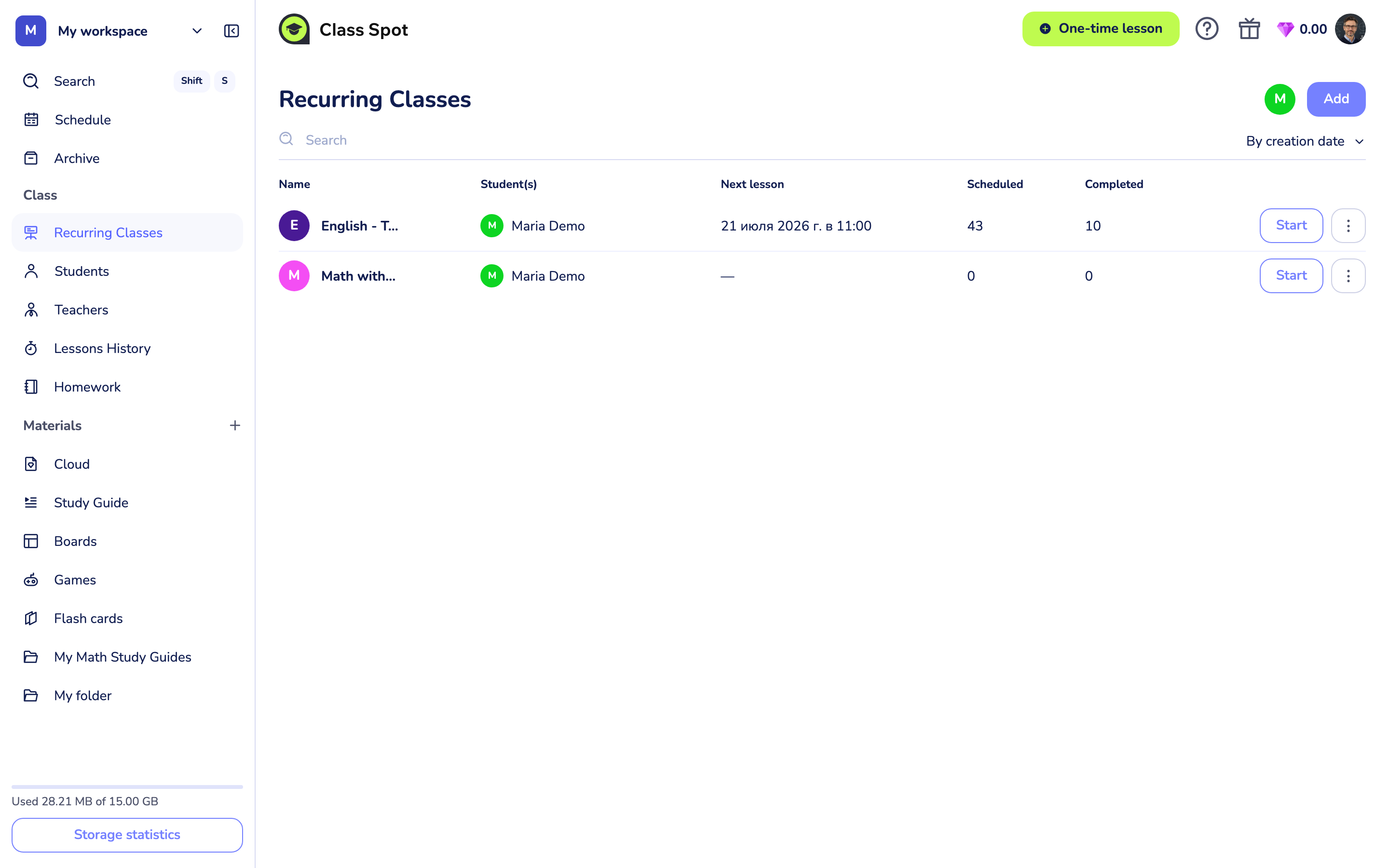
Individual and Group classes
- Individual — a regular 1-on-1 with one student.
- Group — a regular online group lesson. Group classes need a plan that allows more than one student: Solo Max (up to 10 students) or Business (up to 20). Individual classes work on every plan.
On the Free plan you can keep up to 3 Recurring Classes; every paid plan makes them unlimited.
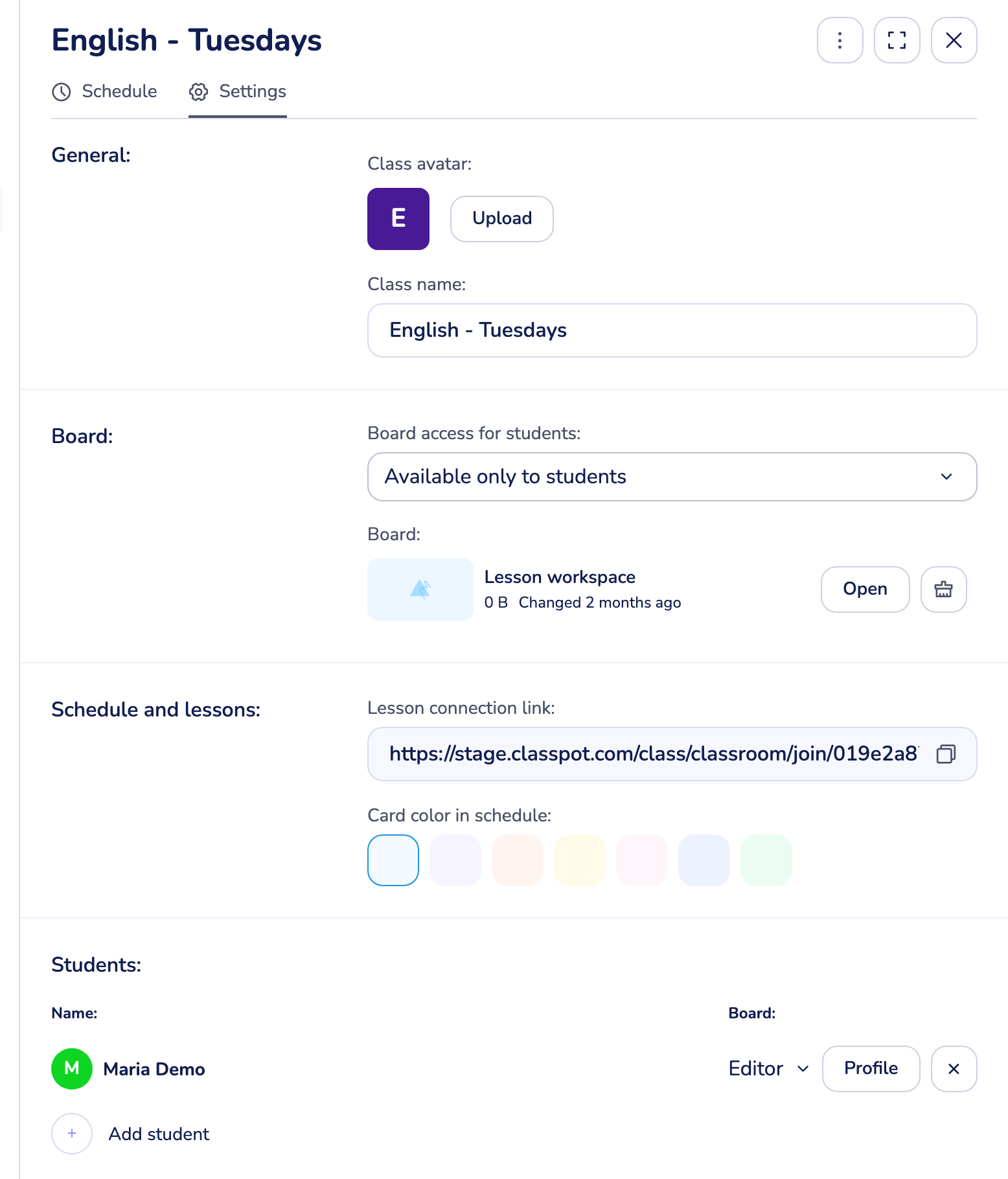
Inside a Recurring Class: the Settings tab
Open a Recurring Class and switch to Settings to manage everything in one place:
- General — the class name and an avatar.
- Board — the persistent board (open it, see when it last changed) and Board access for students: Available only to students, or lock it so nobody but you can edit.
- Schedule and lessons — the permanent Lesson connection link (copy it here) and a colour for the class in your Schedule.
- Students — each student's board role: Editor, Reader (view only), or No access.
What your students see
Students don't manage classes, but they get their own read-only My classes view — their teacher, classmates, the next lesson, and an Enter button when the lesson is live. One link, always the same.
Reminders
Class Spot reminds everyone before each lesson: an in-app countdown in the cabinet and, once connected, messages from the Telegram bot. See Get lesson reminders.
Managing classes
- Duplicate a class to clone a proven board + roster into a new one.
- Archive a class to hide it without losing anything — restore it later from Archive.
- Delete is available after archiving and removes the class and its board for good.
Tips
- Send the link once. Because the join link is permanent, a bookmarked link removes the most common cause of late starts.
- Set the board up ahead of time. Whatever you leave on the board is what your student sees next lesson — prep once, reuse every week.
- Reader role for young students. Set a student to Reader if you want them to follow along without editing the board.
What to do if it doesn't work
My student says the old link doesn't work. Open the class → Settings → copy the current Lesson connection link and resend it. Archived or deleted classes stop accepting connections.
I can't create a group class. Group lessons need Solo Max or Business. On Free and Solo Pro, classes are one-to-one.
I archived a class by mistake. Open Archive in the sidebar and restore it — nothing is lost until you delete it.
If nothing above helps
Contact us:
- In-product chat — click the green chat bubble in the bottom-right of your cabinet, then Start Conversation.
- Email — info@classpot.com.